1. Introduction
While working, you often want to jot something down quickly.
- Write down an idea without stopping what you are doing
- Keep a command, a URL or a draft somewhere for a while
- Take notes without leaving an app you use in full screen
- Keep those notes as plain files that other editors can open
I made notepanel to do all of this.
notepanel is a notepad for macOS that you can call up with one shortcut from any app, and edit with the same keys as VS Code.
Press Ctrl ⌃ + Cmd ⌘ + N, and a note panel appears on top of the app you are using, even a full-screen one. When you are done, press the same keys again: the panel goes away and you are back in your app.
kkensuke/notepanel
A floating Markdown notepad for macOS with VS Code-style editing
2. What notepanel Can Do
The main features are:
- Opens over everything: the panel floats above other windows, full-screen apps included, on every Space. Showing it does not switch apps: the app you were using stays active.
- Small and light: the app is about 2 MB.
- Edits like VS Code: multiple cursors, rectangular selection, moving and copying lines, and find and replace.
- Easy Markdown: highlighting, list continuation, adding and removing bold or italic marks, and task checkboxes.
- Plain files: each note is one
.mdfile, named after its first line. - Hard to lose text: it saves as you type, never overwrites a file another app changed, and keeps earlier versions of each note.
- Quick to switch notes: you can search the names and text of your notes, and pin the ones you use most to open them with one key.
3. Installation
notepanel needs macOS 14 Sonoma or later. Install it with Homebrew:
brew install kkensuke/tap/notepanelThen open the app:
open /Applications/notepanel.appnotepanel lives in the menu bar as a note icon and has no Dock icon. The shortcut needs no Accessibility permission.
The app is signed ad hoc and not notarized by Apple, so macOS would refuse to open it. Homebrew removes its quarantine flag after installing it.
To start notepanel when you log in, turn on Open at login in Settings.
To update, run the command below. It quits notepanel first, so open it again afterwards.
brew upgrade notepanelThe README on GitHub explains how to build it from source. You don't need Xcode; the Command Line Tools are enough.
4. Getting Started
4.1. Show and Hide the Panel
In any app, press Ctrl ⌃ + Cmd ⌘ + N to show the panel. Clicking the menu bar icon also shows it.
You can start typing right away. When you are done, press Esc ⎋, Cmd ⌘ + W, or Ctrl ⌃ + Cmd ⌘ + N again to hide the panel. The focus goes back to the app you were using, so you can carry on with your work.
The panel only floats above your app; it does not switch apps. You can take notes on top of slides you are reading in full screen, or an editor you are using in full screen.
4.2. Write a Note
When the panel appears, it shows the note you had open last time. Press Cmd ⌘ + N to start a new note.
A note is named after its first line. For example, say the first line is:
# Shopping listThe note is saved as Shopping list.md. If you change the first line, the file name follows. If a note with the same name already exists, a number is added.
To choose a name yourself, click the name in the title bar and edit it. From then on, the name stays the same even if you change the first line.
Saving is automatic. notepanel saves 0.3 seconds after you stop typing, and right away when you hide the panel or switch notes. The icon left of the note's name is a dashed circle while there are unsaved changes, and a circle with a check mark once they are saved.
4.3. Switch Notes
Press Cmd ⌘ + P to open the switcher. Type to search the names and text of your notes. Names match fuzzily (the letters you type appear in order), text matches as a substring, and notes matched by name come first.
Use ↑ and ↓ to choose a note, and Enter ↵ to open it. A note found by its text opens with the match selected.
You can also move between notes without the switcher: Ctrl ⌃ + Tab ⇥ goes to the next note, and Ctrl ⌃ + Shift ⇧ + Tab ⇥ to the previous one.
4.4. Pin the Notes You Use Most
Each row of the switcher has a pin button and a trash button. Pinned notes come first, both in the switcher and when you go through notes with Ctrl ⌃ + Tab ⇥.
Cmd ⌘ + 1 to Cmd ⌘ + 9 open the pinned notes. The switcher shows each key next to its pin.
To change the order, drag the handle at the left of a row, or press Opt ⌥ + ↑ and Opt ⌥ + ↓, while the search field is empty.
4.5. See Earlier Versions
Before a save replaces a note, notepanel keeps the earlier text as a version. Press Cmd ⌘ + Y to list the note's earlier versions, newest first, with the chosen version's text below.
Press Enter ↵ to copy the whole of the chosen version. To copy only part of it, select that part and press Cmd ⌘ + C.
Nothing on this screen changes the note. To go back to a version, copy it, press Esc ⎋, and paste it over the note.
5. Edit Like VS Code
5.1. Editing Keys
The editor is CodeMirror 6, with keys matched to VS Code. The main keys are below. In the tables, ⌘ is Command, ⌃ is Control, ⌥ is Option and ⇧ is Shift.
| Keys | Action |
|---|---|
| ⌘⌫ | Delete to the start of the line; at the start of a line, join it with the line above |
| ⌘← / ⌘→ | Go to the start of the line (first, after the indentation) / the end of the line |
| ⌥↑ / ⌥↓ | Move the line up / down |
| ⇧⌥↑ / ⇧⌥↓ | Copy the line up / down |
| ⇧⌘K, ⌘L | Delete the line, select the line |
| ⌘Return / ⇧⌘Return | Insert a line below / above |
| ⌘D, ⇧⌘L, ⌥⌘↑ / ⌥⌘↓, ⌥-click | Multiple cursors |
| ⇧⌥-drag | Rectangular selection |
| ⌘F, ⌘G / ⇧⌘G | Find and replace, find next / previous |
| ⌘Z / ⇧⌘Z | Undo / redo (repeats while held) |
| ⌘+ / ⌘− / ⌘0 | Make the note's text larger / smaller / the default size |
Each note keeps its undo history and cursor position when you switch notes, until you quit the app.
5.2. Writing Markdown
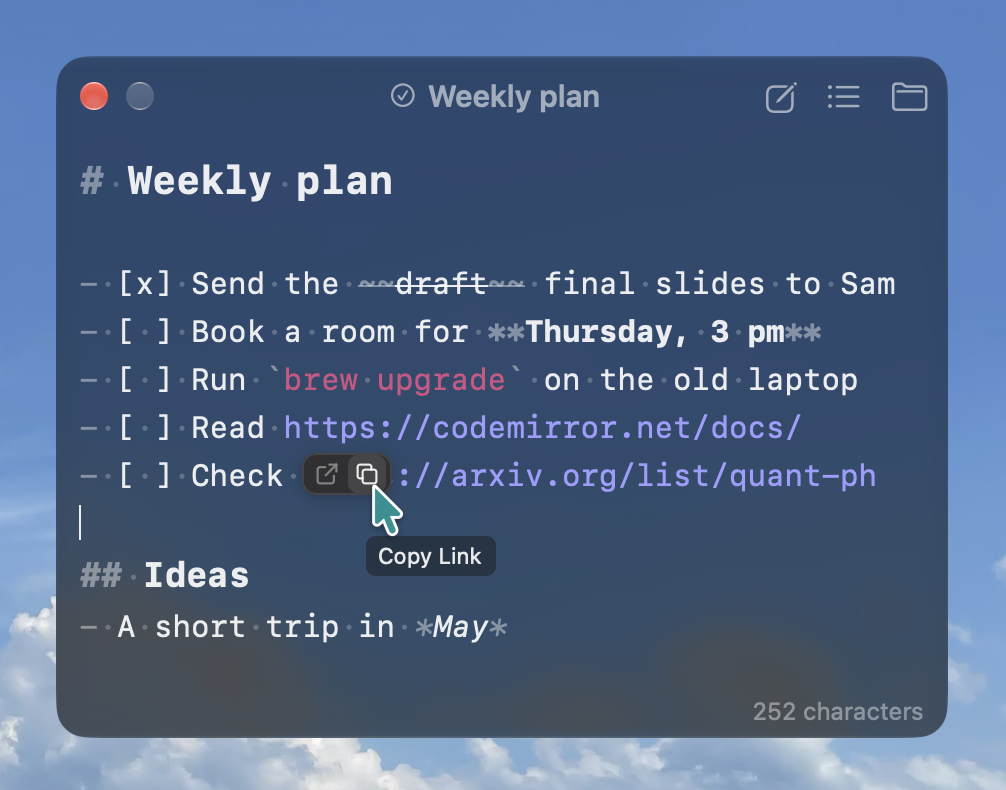
notepanel highlights Markdown. It doesn't hide the marks: you see the text exactly as you wrote it. On top of that, it has a few features that make Markdown easier to write.
| Keys or action | Action |
|---|---|
| Return in a list | Starts the next line with - , 1. , - [ ] and so on. Pressing it on an empty item ends the list |
| ⌘B / ⌘I / ⇧⌘X / ⌘E | Wrap the selection in **, *, ~~ or ` (bold / italic / strikethrough / code). If it is already wrapped, unwrap it |
| ⌘K | Turn the selection into a link's text. If you selected a URL, it becomes the link's target |
Click [ ] / [x] | Check / uncheck a task |
| ⌘-click | Open a link |
When you hover over a link, two buttons appear over its first few characters. One opens the link, the other copies the URL.
Drop a text file onto a note to insert its text where you dropped it. notepanel doesn't open the file or change it.
Checking a task, adding or removing marks, and dropping a file can all be undone with Cmd ⌘ + Z. The bottom right of the panel shows the note's character count.
6. Saving and History
6.1. The Data Folder
notepanel keeps notes and their history in one data folder. The default data folder is ~/Library/Application Support/notepanel, and it looks like this:
~/Library/Application Support/notepanel/
├── Notes/            # Notes (.md files)
│   ├── Shopping list.md
│   └── Weekly plan.md
├── History/          # Earlier versions (one folder per note)
│   └── Weekly plan/
└── settings.json     # How long to keep history
notepanel lists only the .md files directly inside Notes, not the files in its subfolders.
Notes are plain Markdown files, so you can open them in other editors, and sync or back them up as you like. Press Cmd ⌘ + O in the panel to open the Notes folder in Finder, with the open note's file selected.
You can change the data folder in Settings. "9.2. Sync Notes Through the Cloud" explains how.
6.2. Saving and Changes by Other Apps
If saving fails, the icon left of the note's name turns into a red warning, and the bottom of the panel shows why. The text stays in notepanel, and if you quit, notepanel asks before throwing it away.
notepanel reads a note again when you show the panel and when you open the note. A note you changed in another editor opens with the new text the next time you show the panel.
If another app changed the file on disk while notepanel had unsaved text, notepanel doesn't overwrite the file. It saves its text to a separate file named … (conflict date time).md and leaves the file on disk alone.
6.3. How History Is Kept
Before a save replaces a note, notepanel keeps the earlier text as a version, in the folder with the note's name inside History. It keeps at most one version every 10 minutes for each note.
Versions are thinned out over time. In each period, the newest version is kept.
| Age of version | Versions kept |
|---|---|
| Within 1 hour | All |
| 1 hour to 1 day | One per hour |
| 1 day to 1 week | One per day |
| Older than 1 week | One per week. In Settings, choose whether to keep them forever or delete them after 1 year |
When notepanel renames a note, its history folder follows. The history of a note you move to the Trash stays. Versions are plain text files named after their date and time, so you can also open them from Finder.
6.4. Delete a Note
To delete a note, press the trash button in the switcher, or choose the note and press Cmd ⌘ + Del ⌫. notepanel asks first, then moves the note to the Trash. You can put it back from the Trash in Finder.
7. Settings
Press Cmd ⌘ + , in the panel, or right-click the menu bar icon and choose Settings, to open Settings. It has two tabs: General and Shortcuts.
7.1. General
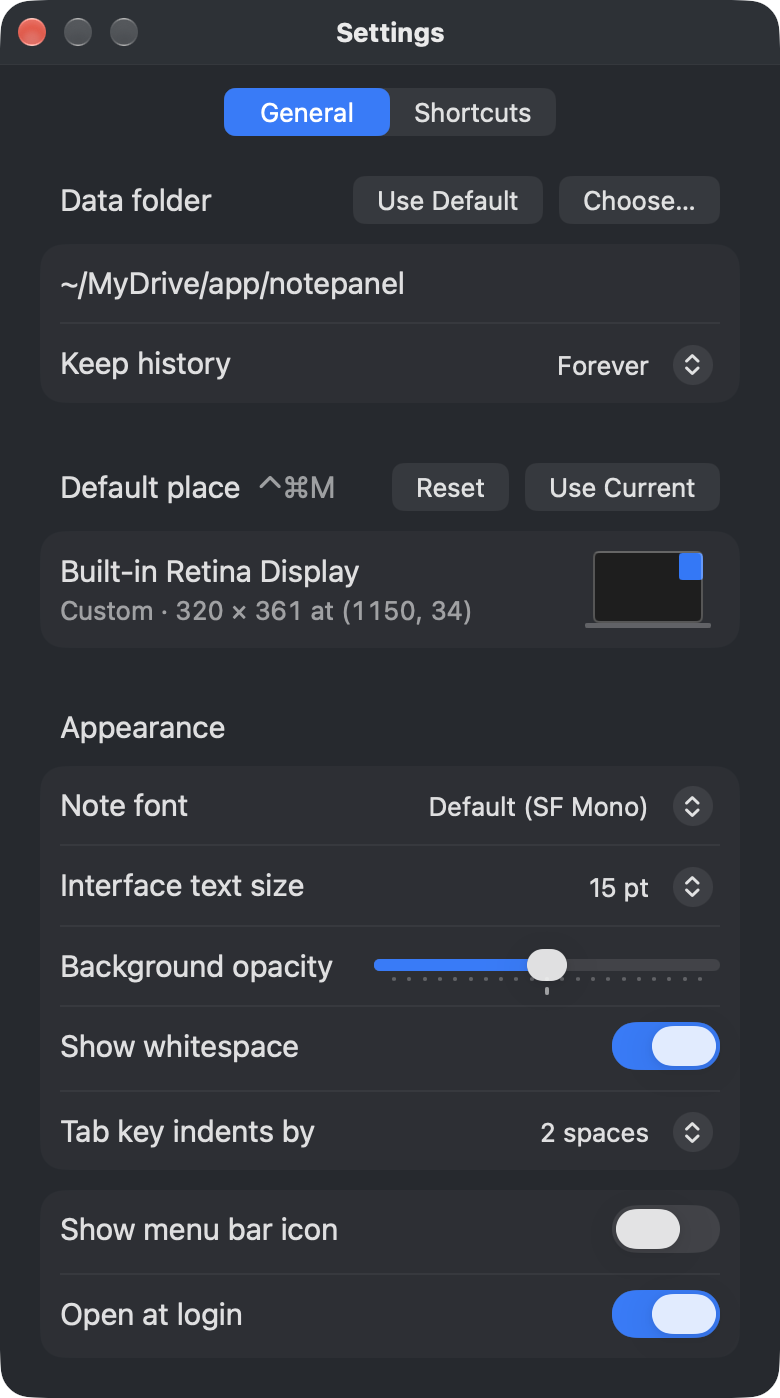
| Setting | Description |
|---|---|
| Data folder | The folder for notes and their history. Choose one with Choose…, and go back to the default with Use Default |
| Keep history | How long to keep the weekly versions: Forever (default) or For 1 year |
| Default place | Where, and at what size, ⌃⌘M puts the panel (see "9.3.") |
| Note font | The font for notes, chosen from this Mac's monospaced fonts. The default is SF Mono |
| Interface text size | The text size of the title bar, the switcher, Settings and so on |
| Background opacity | The opacity of the panel's background. The text doesn't change |
| Show whitespace | Whether to show spaces, tabs and full-width spaces |
| Tab key indents by | How many spaces the Tab key adds (2 or 4) |
| Show menu bar icon | Whether to show the menu bar icon |
| Open at login | Whether to start notepanel when you log in |
The middle of the Background opacity slider is the default, semi-transparent background. Move it left to see more of what is behind the panel, or right to make the background opaque.
With Show whitespace on, full-width spaces are drawn with a box around them, so you can spot the ones hidden in Japanese text.
Even with the menu bar icon hidden, you can open Settings: press Cmd ⌘ + , in the panel, or open notepanel again from Finder or Spotlight.
7.2. Shortcuts
In the Shortcuts tab, you can change these shortcuts:
| Shortcut | Works | Default |
|---|---|---|
| Show or hide notes | From any app | ⌃⌘N |
| New note | From any app | None |
| Search notes | From any app | None |
| Next note | In the panel | ⌃Tab |
| Previous note | In the panel | ⌃⇧Tab |
| Default place | In the panel | ⌃⌘M |
Click a shortcut's field, then press the keys. Esc ⎋ cancels, and the × button removes the shortcut.
So that shortcuts don't take keys you type text with, there are rules for the combinations. A shortcut that works from any app needs Ctrl ⌃ or Opt ⌥, or Shift ⇧ with Cmd ⌘. A shortcut in the panel needs Cmd ⌘ or Ctrl ⌃. Keys already used by another shortcut or by the panel aren't accepted, and the field says why.
8. Keyboard Shortcuts
These are the app's keys in the panel. To see this list in notepanel, press Shift ⇧ + Cmd ⌘ + / in the panel.
| Keys | Action |
|---|---|
| ⌘N / ⌘P / ⌘O | New note / switch notes / open the notes folder with this note selected |
| ⌘Y | Earlier versions of this note |
| ⌃Tab / ⌃⇧Tab | Next / previous note, pinned notes first |
| ⌘1 … ⌘9 | Open pinned note 1 … 9 |
| ⌃⌘M | Move the panel to its default place on the display with the pointer; press again to move it back |
| ⌘W, Esc | Hide (Esc first closes find, extra cursors, the switcher or earlier versions, if open) |
| ⌘, / ⇧⌘/ | Open or close Settings / the list of keyboard shortcuts |
| ⌘Q | Quit (saves first, and asks if something can't be saved) |
| ↑↓, Return, ⌘⌫ in the switcher | Choose, open, move to the Trash |
| ⌥↑ / ⌥↓ in the switcher | Move a pinned note up / down (when the search field is empty) |
| ↑↓, Return, ⌘A, ⌘C in earlier versions | Choose, copy the whole version, select all, copy the selection |
9. Common Tasks
9.1. Start a New Note From Anywhere
The shortcuts for a new note and for searching notes are not set by default. To start a new note from any app, set a shortcut for New note in the Shortcuts tab of Settings.
Pressing that shortcut creates a new note and shows the panel. If you set a shortcut for Search notes, it shows the panel with the switcher open.
9.2. Sync Notes Through the Cloud
Put the data folder in a cloud folder such as iCloud Drive, and your notes and their history sync together.
- In the General tab of Settings, press Choose… under Data folder, and choose the folder in your cloud folder that you want as the data folder
- notepanel starts using the
Notesfolder inside it - To keep using your existing notes, move the
.mdfiles fromNotesin the old data folder toNotesin the new one, in Finder
Choosing another data folder doesn't move your notes. They stay in the old folder, so nothing is lost.
9.3. Set the Panel's Place for Each Display
Press Ctrl ⌃ + Cmd ⌘ + M to move the panel to its default place and size on the display with the mouse pointer. Use it to bring the panel over from another display, or back from off screen. Press it again before you move the panel, and the panel goes back to where it was.
You can set the default place and size for each display:
- Put the panel where you want it on that display, at the size you want
- In the General tab of Settings, click Use Current under Default place
Reset goes back to the standard default: the size the panel had when you first opened it, in the middle of the display.
9.4. Open a Note in Another Editor
Notes are plain .md files, so you can open them in the editor you know, for example to write something long. Press Cmd ⌘ + O in the panel: Finder opens with the note's file selected, and you can open it in your editor from there.
notepanel reads the changes you made in another editor the next time you show the panel. If notepanel had unsaved text and the file changed, it saves its text to a separate file, as described in "6.2. Saving and Changes by Other Apps".
For more details, see the README on GitHub.
kkensuke/notepanel
A floating Markdown notepad for macOS with VS Code-style editing