Introduction
Zsh, or Z shell, is an interactive command-line shell with completion, advanced globbing, prompt customization, plugins, and themes. macOS uses Zsh as its default interactive shell.
You can confirm the current shell and Zsh version with:
echo "$SHELL"
zsh --version
As you customize Zsh, the home directory can fill with .zsh* files and .zshrc can grow into a long, difficult-to-maintain configuration. This guide shows how to:
- keep Zsh configuration files in a dedicated directory with
$ZDOTDIR; - divide
.zshrcinto smaller files by purpose; - verify the new configuration safely; and
- optionally customize the prompt in its own module.
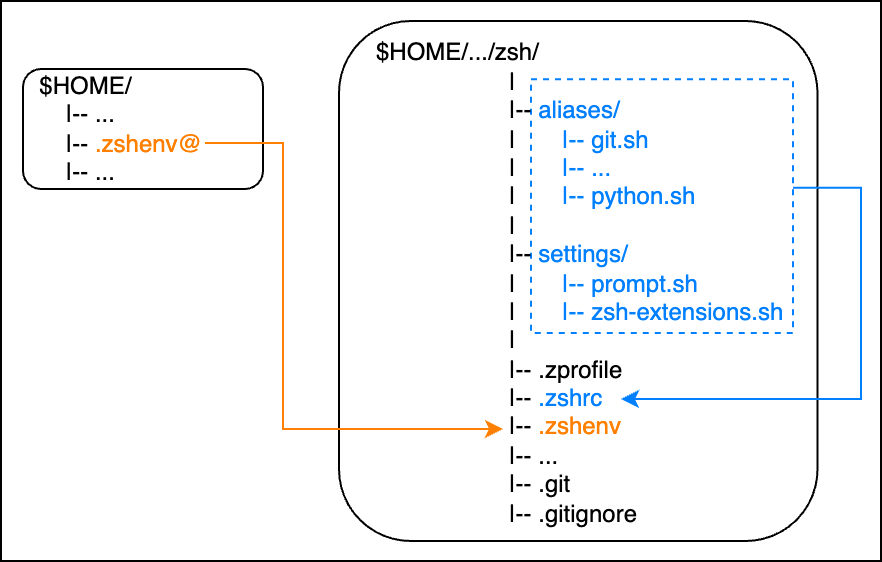
The complete configuration and directory structure used in these examples is available on GitHub:
Zsh Startup Files
Zsh reads different configuration files depending on how the shell starts. The most commonly edited files are:
| File | When it is read | Typical contents |
|---|---|---|
.zshenv | Every Zsh invocation | Essential environment variables such as ZDOTDIR |
.zprofile | Login shells | Login-session environment setup |
.zshrc | Interactive shells | Aliases, functions, completion, plugins, and prompt setup |
.zlogin | Login shells, after .zshrc | Commands that should run near the end of login setup |
Keep .zshenv small because it is read even for non-interactive Zsh commands. Interactive settings normally belong in .zshrc or files sourced from it.
Move Configuration to ZDOTDIR
Without additional configuration, startup files such as .zshenv, .zprofile, and .zshrc normally appear directly in the home directory. Setting $ZDOTDIR tells Zsh to look for most user startup files in another directory.
The final configuration will look like this:
zsh/
├── aliases/
│   ├── files.zsh
│   ├── git.zsh
│   └── python.zsh
├── settings/
│   ├── completion.zsh
│   ├── plugins.zsh
│   └── prompt.zsh
├── .zprofile
├── .zshrc
└── .zshenv
Create the Configuration Directory
Choose a permanent location and create directories for aliases and settings:
config_dir="$HOME/path/to/zsh"
mkdir -p "$config_dir"/{aliases,settings}
Replace $HOME/path/to/zsh with the actual location of your managed configuration.
Copy Existing Startup Files
Copy existing files first instead of moving them. This keeps the current configuration available while you prepare and test the new one.
for file in .zshenv .zprofile .zshrc; do
    [[ -f "$HOME/$file" ]] && cp -p "$HOME/$file" "$config_dir/$file"
done

touch "$config_dir/.zshenv" "$config_dir/.zshrc"
touch creates .zshenv and .zshrc only when they do not already exist; existing contents are preserved.
Set ZDOTDIR in the Managed .zshenv
Add the following setting to $config_dir/.zshenv:
export ZDOTDIR="$HOME/path/to/zsh"The initial .zshenv must still be discoverable from the home directory. Quote the value so that it remains one path if a directory name contains spaces.
Link .zshenv from the Home Directory
Back up the original .zshenv, if present, and create a symbolic link to the managed file:
if [[ -e "$HOME/.zshenv" || -L "$HOME/.zshenv" ]]; then
    mv "$HOME/.zshenv" "$HOME/.zshenv.backup"
fi

ln -s "$HOME/path/to/zsh/.zshenv" "$HOME/.zshenv"
Choose a different backup name if ~/.zshenv.backup already exists.
The startup sequence is now:
~/.zshenv
    -> $HOME/path/to/zsh/.zshenv
    -> export ZDOTDIR=$HOME/path/to/zsh
-> $ZDOTDIR/.zprofile and $ZDOTDIR/.zshrcDo not remove the original .zprofile or .zshrc until the managed configuration has passed the checks below and a new login shell starts successfully.
ZDOTDIR controls startup-file locations, but it does not move the history file by itself. Add the following line to .zshrc if you want to keep history in the managed directory:
HISTFILE="$ZDOTDIR/.zsh_history"Modularize .zshrc
A single .zshrc becomes difficult to maintain when aliases, functions, completion settings, plugins, and prompt definitions are mixed together. Divide them into purpose-specific files and source them from .zshrc.
# $ZDOTDIR/.zshrc

# General settings
[[ -f "$ZDOTDIR/settings/completion.zsh" ]] && source "$ZDOTDIR/settings/completion.zsh"
[[ -f "$ZDOTDIR/settings/plugins.zsh" ]]    && source "$ZDOTDIR/settings/plugins.zsh"
[[ -f "$ZDOTDIR/settings/prompt.zsh" ]]     && source "$ZDOTDIR/settings/prompt.zsh"

# Aliases and functions
[[ -f "$ZDOTDIR/aliases/files.zsh" ]]       && source "$ZDOTDIR/aliases/files.zsh"
[[ -f "$ZDOTDIR/aliases/git.zsh" ]]         && source "$ZDOTDIR/aliases/git.zsh"
[[ -f "$ZDOTDIR/aliases/python.zsh" ]] && source "$ZDOTDIR/aliases/python.zsh"[[ -f "$file" ]] && source "$file" loads a file only when it exists. This prevents startup errors when an optional configuration file is moved or temporarily removed.
Source order matters when one file depends on settings defined by another. Load general environment and completion settings before plugins or aliases that use them, and load prompt configuration after any plugin that modifies the prompt.
Choose one filename extension, such as .zsh, for sourced fragments. A consistent naming rule makes it clear that these files are configuration modules rather than standalone executable scripts.
For practical files to place under aliases/, see Useful Zsh Aliases and Functions.
Verify and Troubleshoot
Check Syntax
Run zsh -n on the main startup files and each sourced module:
for file in \
    "$ZDOTDIR/.zshenv" \
    "$ZDOTDIR/.zprofile" \
    "$ZDOTDIR/.zshrc" \
    "$ZDOTDIR"/aliases/*.zsh(N) \
    "$ZDOTDIR"/settings/*.zsh(N); do
    [[ -f "$file" ]] || continue
    zsh -n "$file" || break
done
zsh -n parses the files without executing their commands. It detects syntax errors but cannot detect every runtime problem.
Start a Fresh Login Shell
After the syntax check succeeds, start a new login shell:
exec zsh -lConfirm that Zsh loaded the expected directory and history path:
print -r -- "$ZDOTDIR"
print -r -- "$HISTFILE"
If either value is unexpected, inspect the link and the managed .zshenv:
ls -l "$HOME/.zshenv"
cat "$HOME/.zshenv"
After the new setup works, archive or remove the old home-directory copies of .zprofile and .zshrc.
Optional: Customize the Prompt
Prompt configuration belongs in a settings file such as $ZDOTDIR/settings/prompt.zsh, rather than in an alias collection.
PS1='%F{082}%n%f %F{051}%~%f %# '
RPROMPT='%T'
The prompt escapes used above mean:
| Escape | Meaning |
|---|---|
%n | Username |
%~ | Current directory, with the home directory shortened to ~ |
%# | # for a privileged shell, otherwise % |
%T | Current time in 24-hour format; %t uses 12-hour format |
%F{number} ... %f | Start and end a foreground color |
The color values follow the terminal's color palette. See the ANSI escape code color table and the Zsh Prompt Expansion documentation for more options.
To print a blank line before each prompt except the first one:
precmd() { precmd() { echo } }Next Steps
The configuration is now organized under $ZDOTDIR, divided into focused modules, and verified with a fresh login shell. Continue with Useful Zsh Aliases and Functions for practical files to place under aliases/.