はじめに
Zsh(Z shell)は、補完、高度なグロブ、プロンプトのカスタマイズ、プラグイン、テーマなどの機能を備えた対話的なコマンドラインシェルです。macOS では、Zsh がデフォルトの対話シェルとして使われています。
設定されているログインシェルと、インストールされている Zsh のバージョンは、次のコマンドで確認できます。
print -r -- "$SHELL"
zsh --version
すでに Zsh を実行している場合は、print -r -- "$ZSH_VERSION" で現在のシェルのバージョンを確認できます。$SHELL は現在実行中のシェルプロセスではなく、設定されているログインシェルを表すため、結果が異なる場合があります。
Zsh をカスタマイズしていくと、ホームディレクトリに .zsh* ファイルが増え、.zshrc も長くなって管理しにくくなります。このガイドでは、次の方法を説明します。
$ZDOTDIRを使い、Zsh の設定ファイルを専用ディレクトリへまとめる。.zshrcを用途別の小さなファイルに分割する。- 新しい設定を安全に検証する。
- 必要に応じて、プロンプトの設定を独立したモジュールへ分ける。
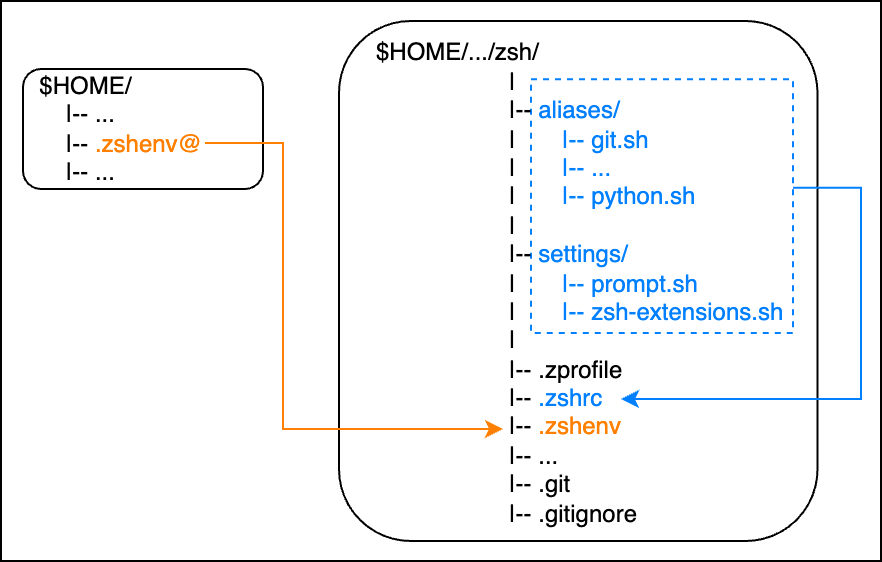
この記事で使う設定全体とディレクトリ構成は、GitHub で公開しています。
Zsh の起動ファイル
Zsh は、シェルの起動方法に応じて異なる設定ファイルを読み込みます。よく編集するファイルは次のとおりです。
| ファイル | 読み込まれるタイミング | 主な内容 |
|---|---|---|
.zshenv | すべての Zsh 起動時 | ZDOTDIR など、必要最小限の環境変数 |
.zprofile | ログインシェル | ログインセッション用の環境設定 |
.zshrc | 対話シェル | エイリアス、関数、補完、プラグイン、プロンプト |
.zlogin | ログインシェルで .zshrc の後 | ログイン設定の終わり近くで実行するコマンド |
.zlogout | ログインシェルの終了時 | ログインセッションの終了処理 |
.zshenv は非対話的な Zsh コマンドでも読み込まれるため、内容を必要最小限にします。対話的な設定は通常、.zshrc またはそこから読み込むファイルに記述します。
設定を ZDOTDIR へ移動する
追加の設定をしていない場合、.zshenv、.zprofile、.zshrc などの起動ファイルは、通常ホームディレクトリに置かれます。$ZDOTDIR を設定すると、Zsh はユーザー用の起動ファイルの多くを別のディレクトリから読み込むようになります。
最終的な構成は次のようになります。
zsh/
├── aliases/
│   ├── files.zsh
│   ├── git.zsh
│   └── python.zsh
├── settings/
│   ├── completion.zsh
│   ├── plugins.zsh
│   └── prompt.zsh
├── .zshenv
├── .zprofile
├── .zshrc
├── .zlogin
└── .zlogout
設定ディレクトリを作成する
今後も使い続ける保存場所を決め、エイリアス用と設定用のディレクトリを作成します。
config_dir="$HOME/path/to/zsh"
mkdir -p "$config_dir"/{aliases,settings}
$HOME/path/to/zsh は、実際に設定を管理する場所へ置き換えてください。
既存の起動ファイルをコピーする
最初は移動せずにコピーします。これにより、新しい設定を準備して検証している間も、現在の設定を残しておけます。
for file in .zshenv .zprofile .zshrc .zlogin .zlogout; do
    [[ -f "$HOME/$file" ]] && cp -p "$HOME/$file" "$config_dir/$file"
done

touch "$config_dir/.zshenv" "$config_dir/.zshrc"
touch は、.zshenv と .zshrc が存在しない場合だけファイルを作成します。すでに存在するファイルの内容は変更しません。
管理対象の .zshenv で ZDOTDIR を設定する
$config_dir/.zshenv へ次の設定を追加します。
export ZDOTDIR="$HOME/path/to/zsh"最初に読み込む .zshenv は、引き続きホームディレクトリから見つけられる必要があります。ディレクトリ名に空白が含まれていても 1 つのパスとして扱えるよう、値を引用符で囲みます。
ホームディレクトリから .zshenv へリンクする
元の .zshenv が存在する場合はバックアップし、管理対象のファイルへのシンボリックリンクを作成します。
config_dir="$HOME/path/to/zsh"
backup="$HOME/.zshenv.backup"

if [[ -e "$HOME/.zshenv" || -L "$HOME/.zshenv" ]]; then
    if [[ -e "$backup" || -L "$backup" ]]; then
        print -u2 -- "Backup already exists: $backup"
    else
        mv "$HOME/.zshenv" "$backup"
    fi
fi

if [[ ! -e "$HOME/.zshenv" && ! -L "$HOME/.zshenv" ]]; then
    ln -s "$config_dir/.zshenv" "$HOME/.zshenv"
fi
バックアップがすでに存在する場合、元の .zshenv はそのまま残り、シンボリックリンクも作成されません。既存のバックアップを別の名前へ変更するか、ほかの場所へ保存してから、もう一度コマンドを実行してください。
対話的なログインシェルでは、起動順序が次のようになります。
~/.zshenv
    -> $HOME/path/to/zsh/.zshenv
    -> export ZDOTDIR=$HOME/path/to/zsh
    -> $ZDOTDIR/.zprofile
    -> $ZDOTDIR/.zshrc
    -> $ZDOTDIR/.zlogin
ログインシェルが正常に終了すると、Zsh は $ZDOTDIR/.zlogout を読み込みます。
管理対象の設定が後述の確認を通過し、新しいログインシェルが正常に起動するまでは、元の .zprofile、.zshrc、.zlogin、.zlogout を削除しないでください。
ZDOTDIR は起動ファイルの場所を変更しますが、履歴ファイルは自動的に移動しません。既存の履歴を残す場合は、ほかの Zsh セッションを閉じ、新しい設定を起動する前に履歴ファイルをコピーします。
config_dir="$HOME/path/to/zsh"

if [[ -f "$HOME/.zsh_history" && ! -e "$config_dir/.zsh_history" ]]; then
    cp -p "$HOME/.zsh_history" "$config_dir/.zsh_history"
fi起動中のシェルは古い履歴ファイルへ書き込みを続ける場合があります。移行中に別のセッションが開いていた場合は、そのセッションを終了した後でもう一度コピーしてください。その後、.zshrc へ次の行を追加します。
HISTFILE="$ZDOTDIR/.zsh_history".zshrc を分割する
エイリアス、関数、補完設定、プラグイン、プロンプト定義を 1 つの .zshrc へまとめると、管理が難しくなります。用途別のファイルへ分け、.zshrc から読み込みます。
# $ZDOTDIR/.zshrc

# 一般設定
[[ -f "$ZDOTDIR/settings/completion.zsh" ]] && source "$ZDOTDIR/settings/completion.zsh"
[[ -f "$ZDOTDIR/settings/plugins.zsh" ]]    && source "$ZDOTDIR/settings/plugins.zsh"
[[ -f "$ZDOTDIR/settings/prompt.zsh" ]]     && source "$ZDOTDIR/settings/prompt.zsh"

# エイリアスと関数
[[ -f "$ZDOTDIR/aliases/files.zsh" ]]       && source "$ZDOTDIR/aliases/files.zsh"
[[ -f "$ZDOTDIR/aliases/git.zsh" ]]         && source "$ZDOTDIR/aliases/git.zsh"
[[ -f "$ZDOTDIR/aliases/python.zsh" ]] && source "$ZDOTDIR/aliases/python.zsh"[[ -f "$file" ]] && source "$file" は、ファイルが存在する場合だけ読み込みます。任意の設定ファイルを移動したり一時的に削除したりしても、起動時のエラーを防げます。
あるファイルが別のファイルで定義した設定に依存している場合は、読み込み順が重要です。一般的な環境設定と補完設定を、それらを使うプラグインやエイリアスより先に読み込みます。プロンプトを変更するプラグインがある場合は、そのプラグインより後にプロンプト設定を読み込みます。
読み込む設定ファイルには、.zsh など 1 種類の拡張子を使います。命名規則を統一すると、単独で実行するスクリプトではなく、設定用のモジュールであることが分かりやすくなります。
aliases/ へ置く実用的なファイルについては、便利な Zsh のエイリアスと関数を参照してください。
検証とトラブルシューティング
構文を確認する
主な起動ファイルと、読み込む各モジュールに対して zsh -n を実行します。
for file in \
    "$ZDOTDIR/.zshenv" \
    "$ZDOTDIR/.zprofile" \
    "$ZDOTDIR/.zshrc" \
    "$ZDOTDIR/.zlogin" \
    "$ZDOTDIR/.zlogout" \
    "$ZDOTDIR"/aliases/*.zsh(N) \
    "$ZDOTDIR"/settings/*.zsh(N); do
    [[ -f "$file" ]] || continue
    zsh -n -f "$file" || break
done
zsh -n は、コマンドを実行せずにファイルを解析します。-f オプションは、検査時にユーザー用の起動ファイルが自動的に読み込まれるのを防ぎます。構文検査だけでは、実行時に起こるすべての問題を検出できません。
新しいログインシェルを起動する
構文検査に成功したら、新しいログインシェルを起動します。
zsh -lこれは入れ子になったログインシェルを起動します。設定が期待どおりに動作しない場合は、exit を実行して元のシェルへ戻れます。
Zsh が期待したディレクトリと履歴ファイルを読み込んでいることを確認します。
print -r -- "$ZDOTDIR"
print -r -- "$HISTFILE"
どちらかの値が想定と異なる場合は、シンボリックリンクと管理対象の .zshenv を確認します。
ls -l "$HOME/.zshenv"
cat "$HOME/.zshenv"新しい設定が正常に動作したら、exit を実行して元のシェルへ戻ります。その後、ホームディレクトリに残っている元の .zprofile、.zshrc、.zlogin、.zlogout を保管または削除できます。
確認済みのログインシェルで現在のシェルを置き換えるには、次を実行します。
exec zsh -l任意:プロンプトをカスタマイズする
プロンプトの設定は、エイリアス用のファイルではなく、$ZDOTDIR/settings/prompt.zsh のような設定ファイルへ記述します。
PS1='%F{082}%n%f %F{051}%~%f %# '
RPROMPT='%T'
この例で使っているプロンプトのエスケープは、次の意味を持ちます。
| エスケープ | 意味 |
|---|---|
%n | ユーザー名 |
%~ | 現在のディレクトリ。ホームディレクトリは ~ に短縮される |
%# | 特権シェルでは #、それ以外では % |
%T | 24 時間形式の現在時刻。%t は 12 時間形式 |
%F{number} ... %f | 前景色の開始と終了 |
色の値は、ターミナルのカラーパレットに従います。ほかの指定方法については、ANSI エスケープコードのカラーテーブルと Zsh の Prompt Expansion ドキュメントを参照してください。
最初のプロンプトを除き、各プロンプトの前に空行を表示するには、次の設定を使います。
autoload -Uz add-zsh-hook

typeset -gi _prompt_count=0

_blank_line_before_prompt() {
    if (( _prompt_count > 0 )); then
        print
    fi

    (( ++_prompt_count ))
    return 0
}

add-zsh-hook precmd _blank_line_before_prompt
add-zsh-hook を使うことで、プラグインやフレームワークが登録したほかの precmd フックを上書きせずに残せます。
次のステップ
これで、設定を $ZDOTDIR の下へまとめ、用途別のモジュールへ分割し、新しいログインシェルで検証できました。aliases/ へ置く実用的な設定については、便利な Zsh のエイリアスと関数を参照してください。