0. Firefox is Quite User-Friendly
While new browsers are constantly being hyped, after using all available browsers, I find Firefox to be quite convenient. I'm writing this article as a thank you to the developers. If you haven't tried it yet, please install it and give it a try.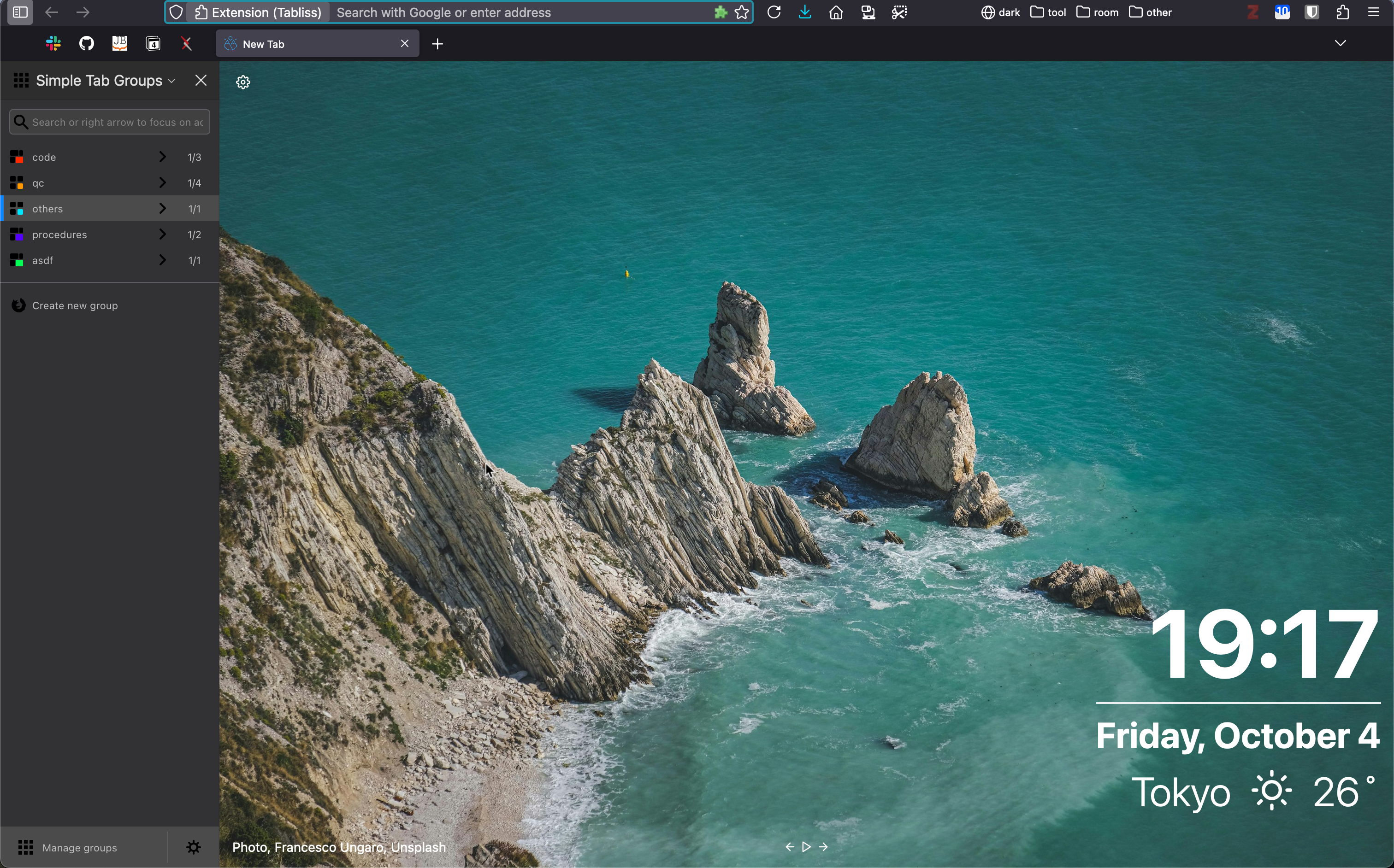
1. Changing Settings
You can open the preferences page with Cmd ⌘ + ,. Initially, it's good to import data from the browser you're currently using. You can also adjust other settings to your preference on this page.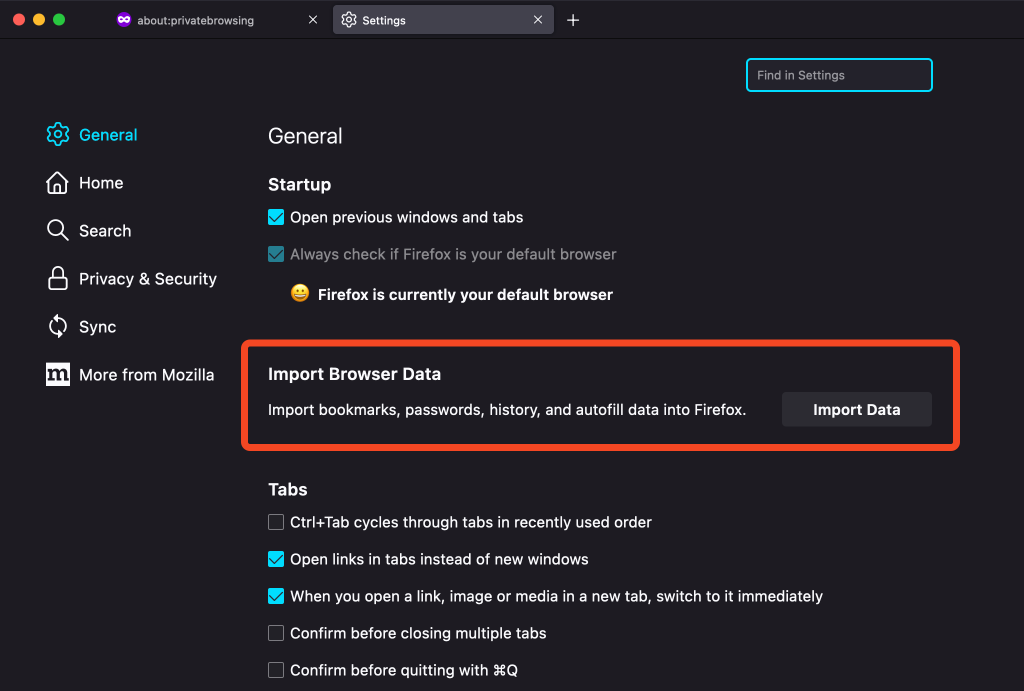
2. Useful Features
Below is a simple list of Firefox's useful features. Some of these are explained in more detail later.- Rich extensions (add-ons)
-
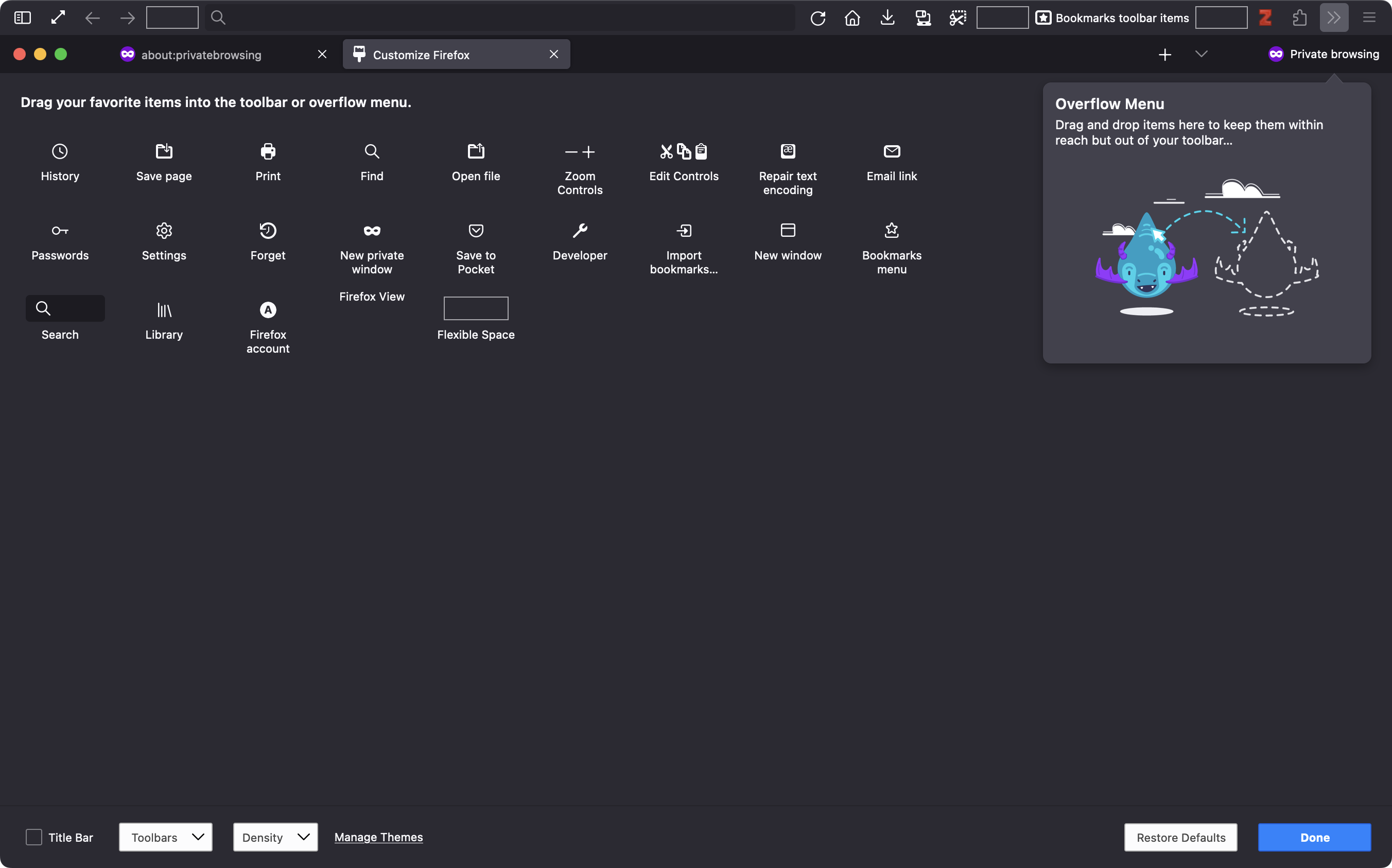
Easily customizable toolbar. Right-click on the toolbar and select "Customize Toolbar" to see the following screen. You can add and remove icons using drag and drop.
-
Sidebar: Provides easy access to various information:
- Bookmarks
- Browsing history
- Synced tabs
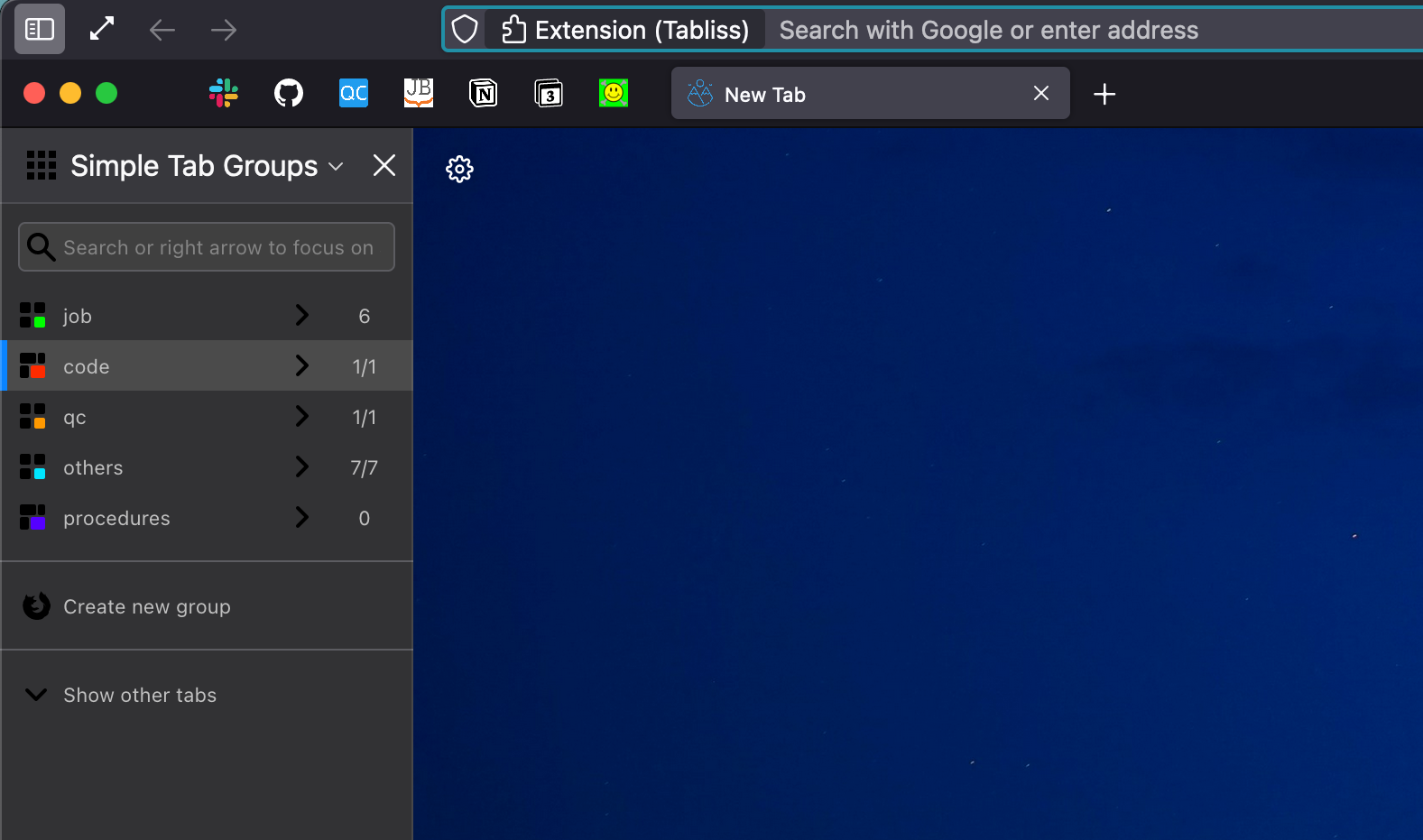
Simple Tab Groups(extension) You can group and organize tabs. Tabs are saved even when you close the window.- AI Chatbot: Check
AI chatbotin theFirefox Labssection of the settings page. If you checkShow prompts on text select, you can immediately send selected text to your specified language model on any site.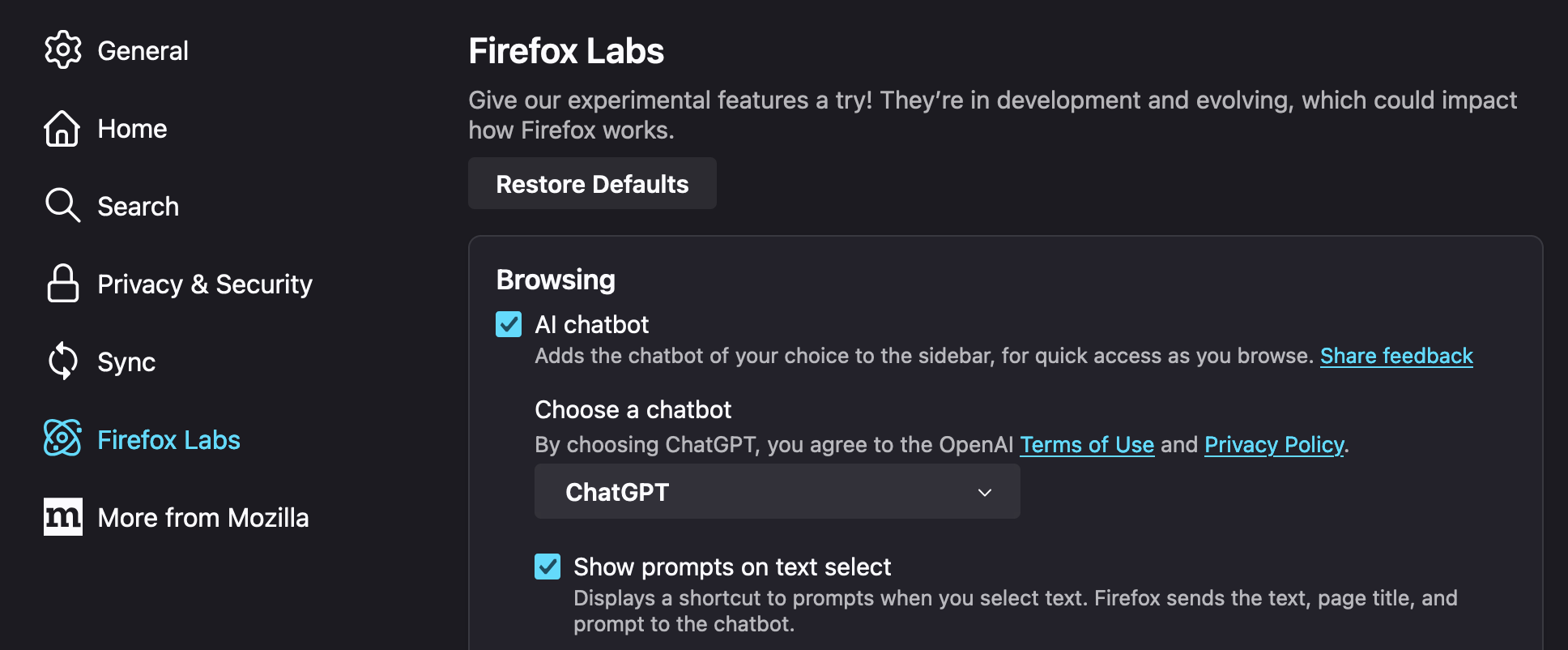
- Multi-Account Containers You can log in to the same site with different accounts simultaneously. For example, in one tab, you can log in to a site with your work account, and in another tab, you can log in to the same site with your personal account.
-
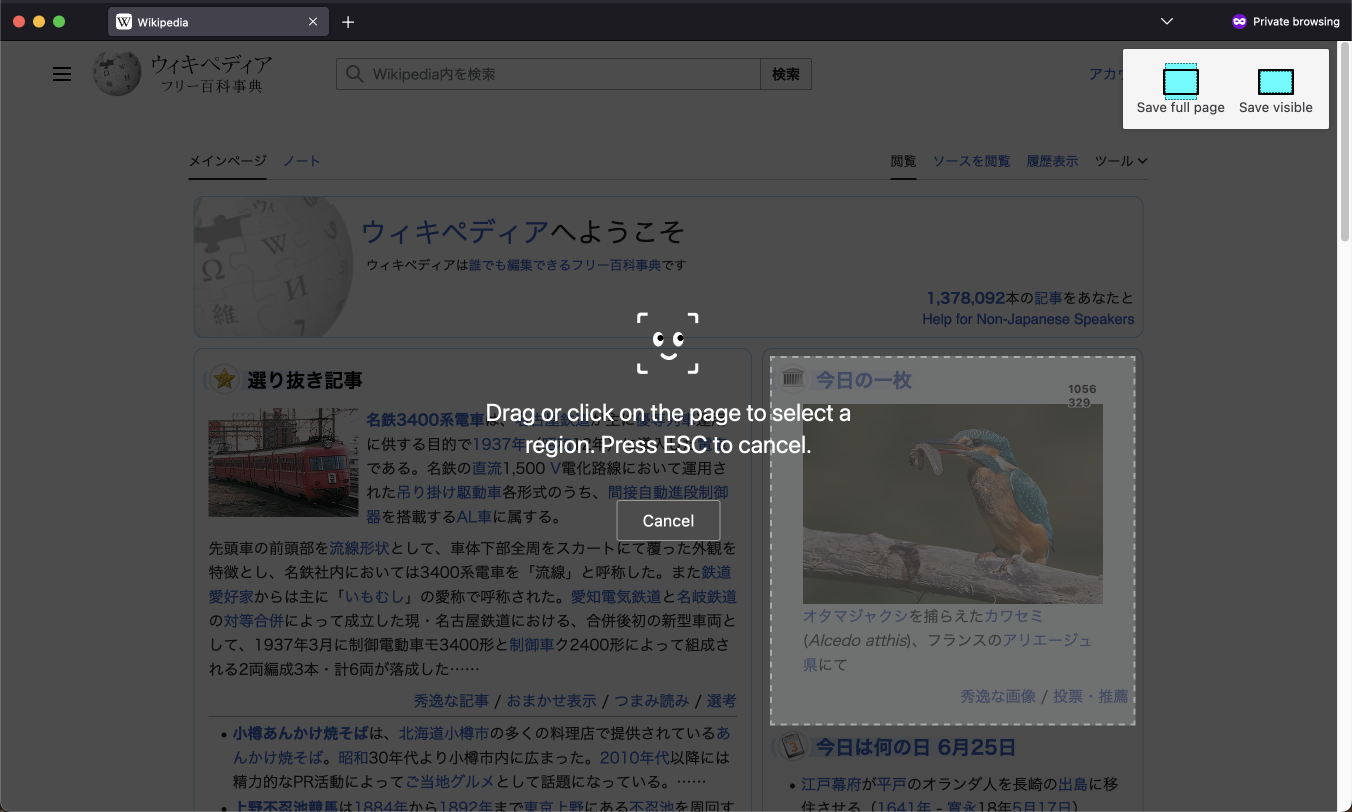
Screenshots: Cmd ⌘ + Shift ⇧ + S
You can select the range of screenshots in four ways:
- Select the range yourself
- Automatically select part of the page where the cursor is
- Select the entire visible range
- Select the entire scrollable range
- Reader View: Opt ⌥ + Cmd ⌘ + R Removes unnecessary elements from web pages and improves readability.
- Device synchronization
-
Customize the browser's appearance with
userChrome.css.
3. Add-ons (Extensions)
Warning
Certain combinations of add-ons may cause unexpected behavior. In such cases, temporarily disable the suspected add-on, restart Firefox, and see which add-on is causing the issue. Once you identify which add-ons are conflicting, it's good to report the issue on the GitHub repository.
3-1. Productivity Related
Note
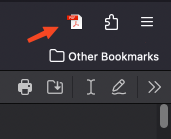
Dark Reader doesn't work on Firefox's PDF viewer. You can use the
doqment add-on mentioned next or use the following Bookmarklet (JavaScript function registered as a bookmark link). This Bookmarklet inverts colors for regular web pages and just inverts the PDF colors when viewing PDFs (run it twice to revert). For dark mode background in the PDF viewer, see section 4 about:config.javascript:(function(){var L='style_combined',S='#viewerContainer>#viewer.pdfViewer>.page{filter:%20invert(93%)}',E=document.querySelector('style[id="'+L+'"]');if(E){E.disabled=!E.disabled}else{var%20css='html%20{-webkit-filter:%20invert(90%);-moz-filter:%20invert(100%);-o-filter:%20invert(100%);-ms-filter:%20invert(100%);%20}',head=document.getElementsByTagName('head')[0],style=document.createElement('style');if(!window.counter){window.counter=1}else{window.counter++;if(window.counter%2==0){css='html%20{-webkit-filter:%20invert(0%);-moz-filter:%20invert(0%);-o-filter:%20invert(0%);-ms-filter:%20invert(0%);%20}'}}style.type='text/css';style.id=L;style.innerHTML=document.querySelector('#viewerContainer>#viewer.pdfViewer')?S:css;head.appendChild(style)}})()Warning
When this extension is enabled while viewing PDFs, you cannot use the
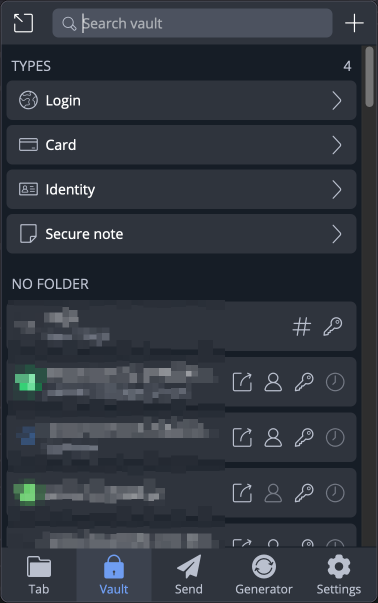
Zotero Connector mentioned later. There is no issue when viewing non-PDF content.Open in Sidebar -> Preferences] and register a shortcut to open this extension in the sidebar. See item 3-4 below for registration methods.Warning
There is a similar add-on called
Side View, but using it prevents YouTube Music from playing in the background.Multi-Account Containers, and you can set which container to open tabs in for each group. It's convenient to register a shortcut to open this extension in the sidebar. See item 3-4 below for registration methods.

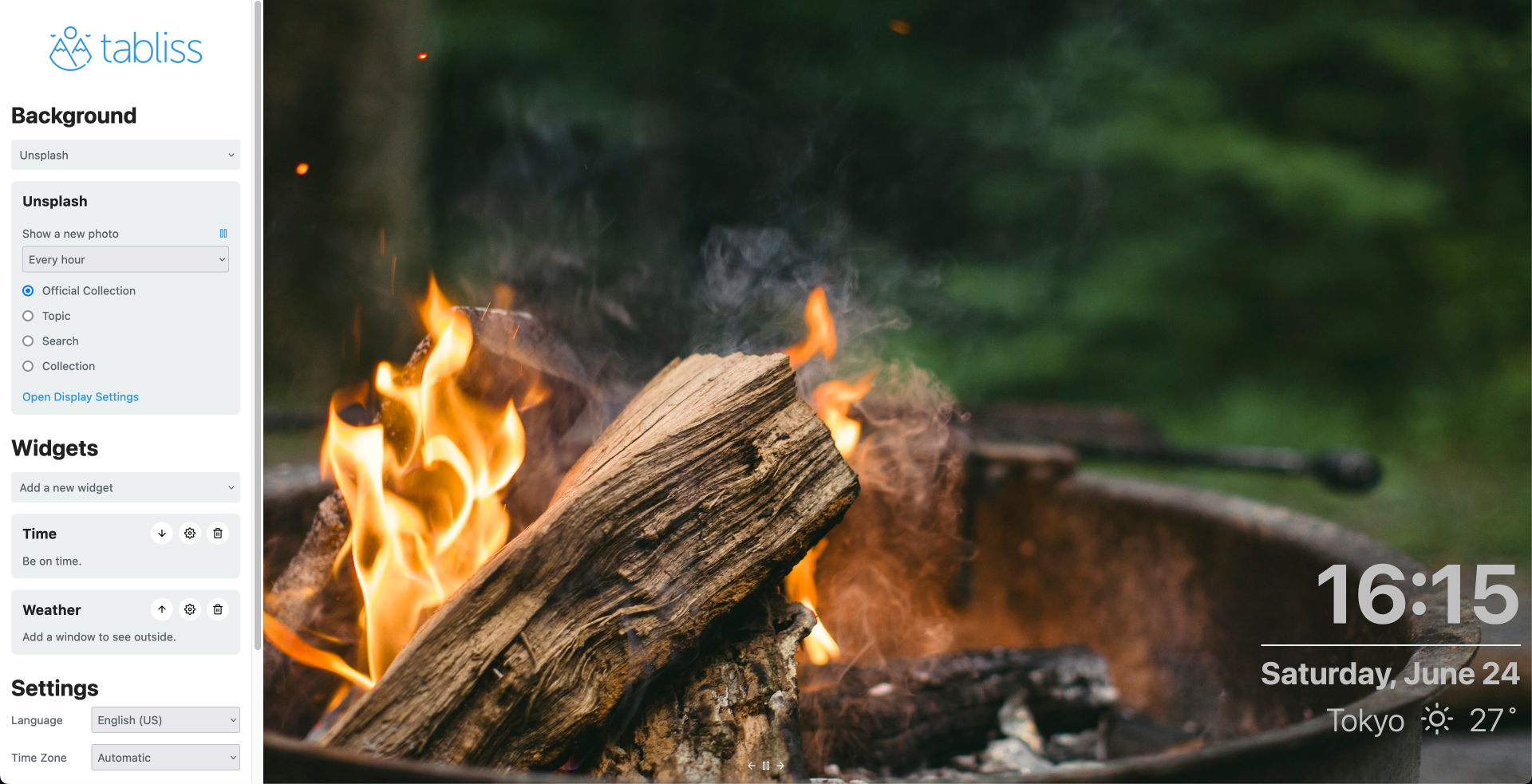
Unsplash is recommended for backgrounds.
3-2. YouTube Related
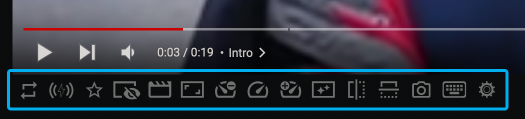
Enhancer for YouTube, it works on any video, not just YouTube, including Amazon Prime, with simple keyboard shortcuts. Video speed can be finely adjusted and set to more than 2x.Ad Blockers: As mentioned in the next security section, either of the following can remove YouTube ads:
3-3. Security Related
Warning
The former may cause issues when used with Simple Tab Groups (duplicating new tabs opened in containers).
Block element.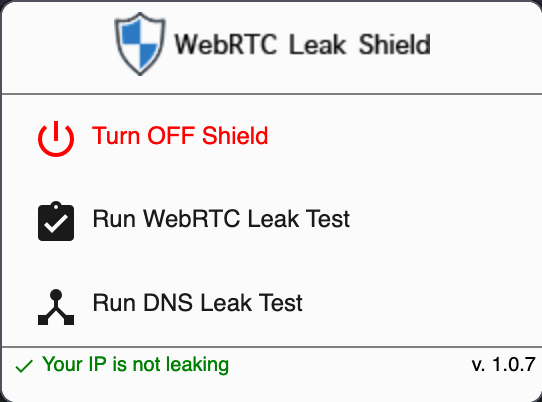
Note
WebRTC stands for Web Real-Time Communication and is a technology that allows direct voice and video communication between browsers over the internet without requiring external software or plugins. While convenient for video conferences and real-time communication, there are privacy concerns about IP address leakage. Disabling WebRTC in your browser can prevent IP leakage.
3-4. Setting Add-on Shortcuts
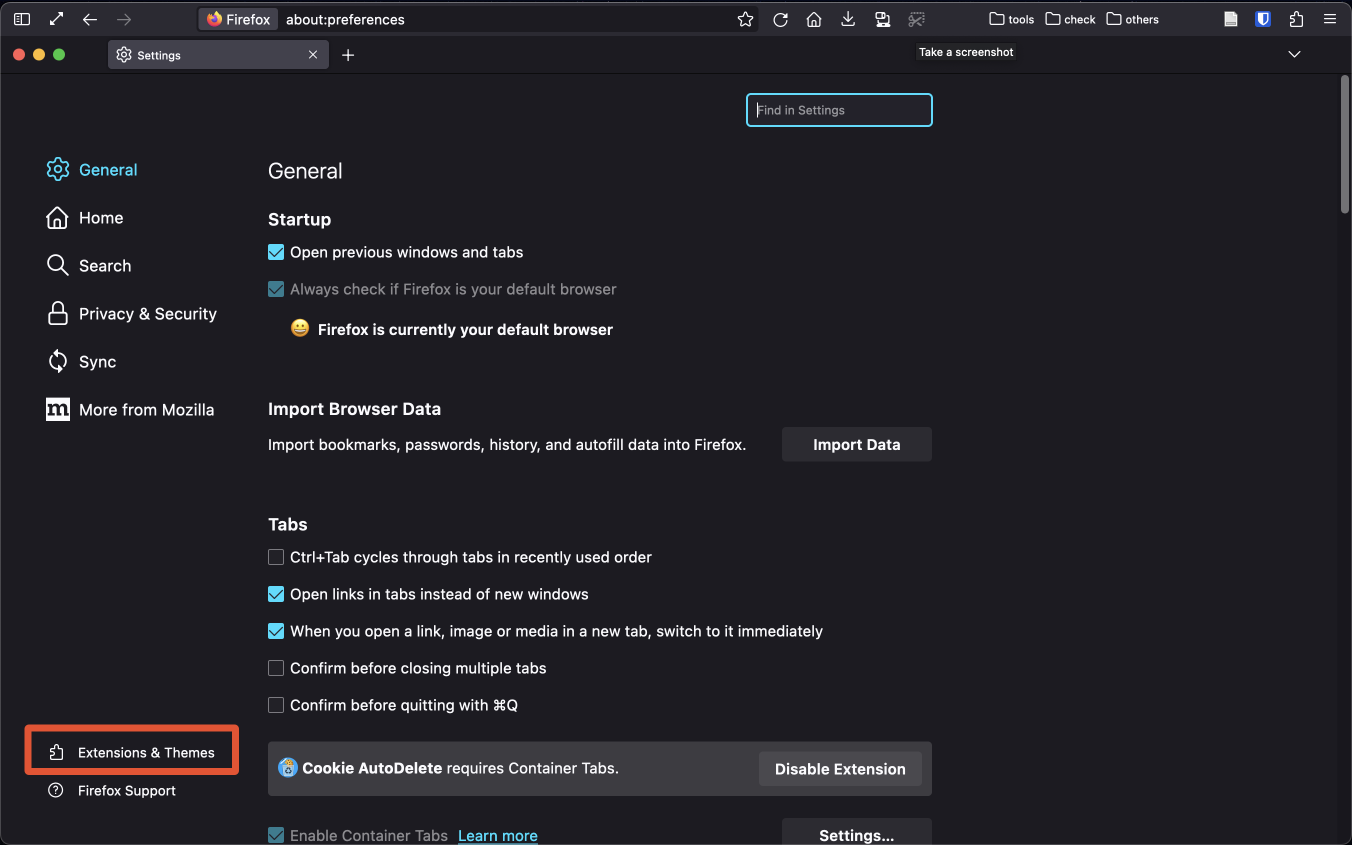
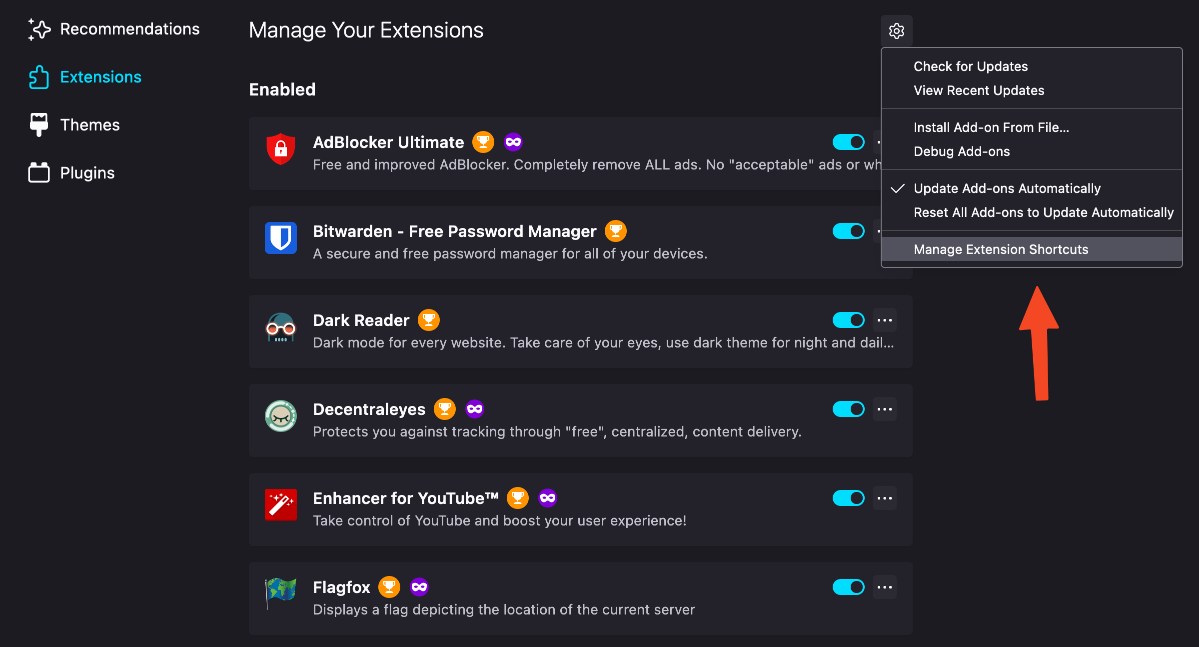
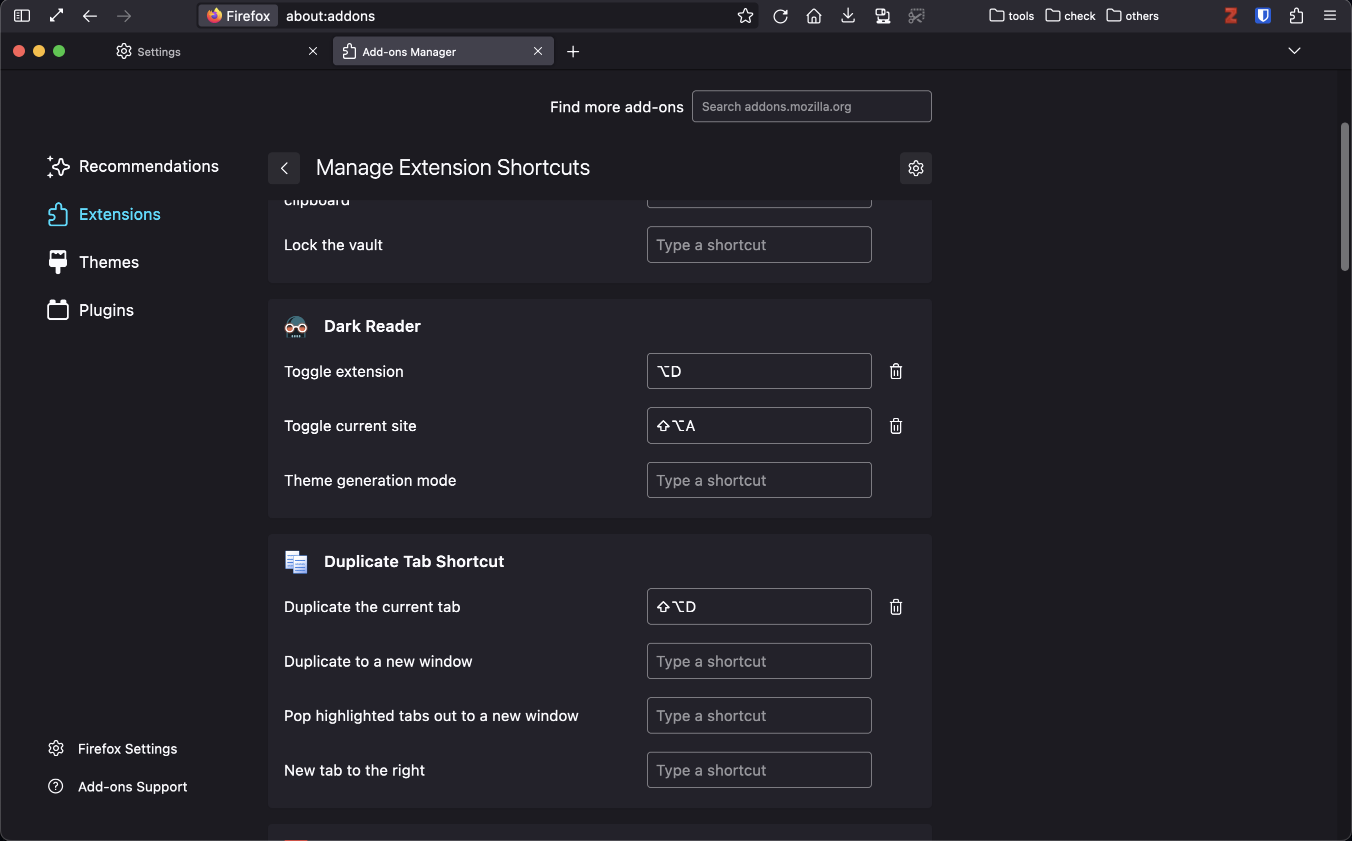
4. about
about:config allows you to change various detailed settings.
Warning
The
about:config items may change with version updates. Older sites may list items that no longer exist.- First, type
about:configin the search bar and press Enter. - A warning page will appear, but proceed by clicking through.
-
To set PDF preview to dark theme, change the following setting to
2pdfjs.viewerCssTheme 2 -
To enable pinch functionality, change the following setting to
truebrowser.gesture.pinch.latched true -
Open bookmarks in a new tab
browser.tabs.loadBookmarksInTabs true -
Enable spell checking in all text boxes
layout.spellcheckDefault 2 -
Keep the window open even when the last tab is closed
browser.tabs.closeWindowWithLastTab false -
Allow applying
userChrome.csstoolkit.legacyUserProfileCustomizations.stylesheets true -
Make
Compact viewapplicablebrowser.compactmode.show true -
Make add-ons available on all sites
extensions.webextensions.restrictedDomains (delete all) -
Make fullscreen transitions smooth
full-screen-api.macos-native-full-screen	false
full-screen-api.transition-duration.enter	0 0
full-screen-api.transition-duration.leave	0 0
5. Security Settings
5-1. Secure Internet Connection
- Use a VPN
- Enable Cloudflare
- Enable ECH
- Disable WebRTC
5-1-1. VPN
A Virtual Private Network (VPN) offers benefits such as hiding your IP address, encrypting internet traffic, and accessing region-restricted content.5-1-2. Enable DoH (DNS-over-HTTPS) with Cloudflare
- Access the preferences page with Cmd ⌘ + ,.
- Scroll down to "Network Settings" and click "Settings...".
- Select "Enable DNS over HTTPS" and choose "Cloudflare" or "NextDNS" as the provider.
- Click "OK" to close the tab.
5-1-3. Enable ECH (Encrypted Client Hello)
- Open Firefox and access
about:config. - Search for
network.dns. - Set
network.dns.echconfig.enabledtotrue. - Set
network.dns.http3_echconfig.enabledtotrue.
5-1-4. Disable WebRTC
Note
WebRTC stands for Web Real-Time Communication and is a technology that allows direct voice and video communication between browsers over the internet without requiring external software or plugins. While convenient for video conferences and real-time communication, there are privacy concerns about IP address leakage. Disabling WebRTC in your browser can prevent IP leakage.
- Open Firefox and access
about:config. - Search for
media.peerconnection.enabledand set it tofalse.
5-2. Testing
When you pass the Cloudflare Browser Check, it will be displayed as follows: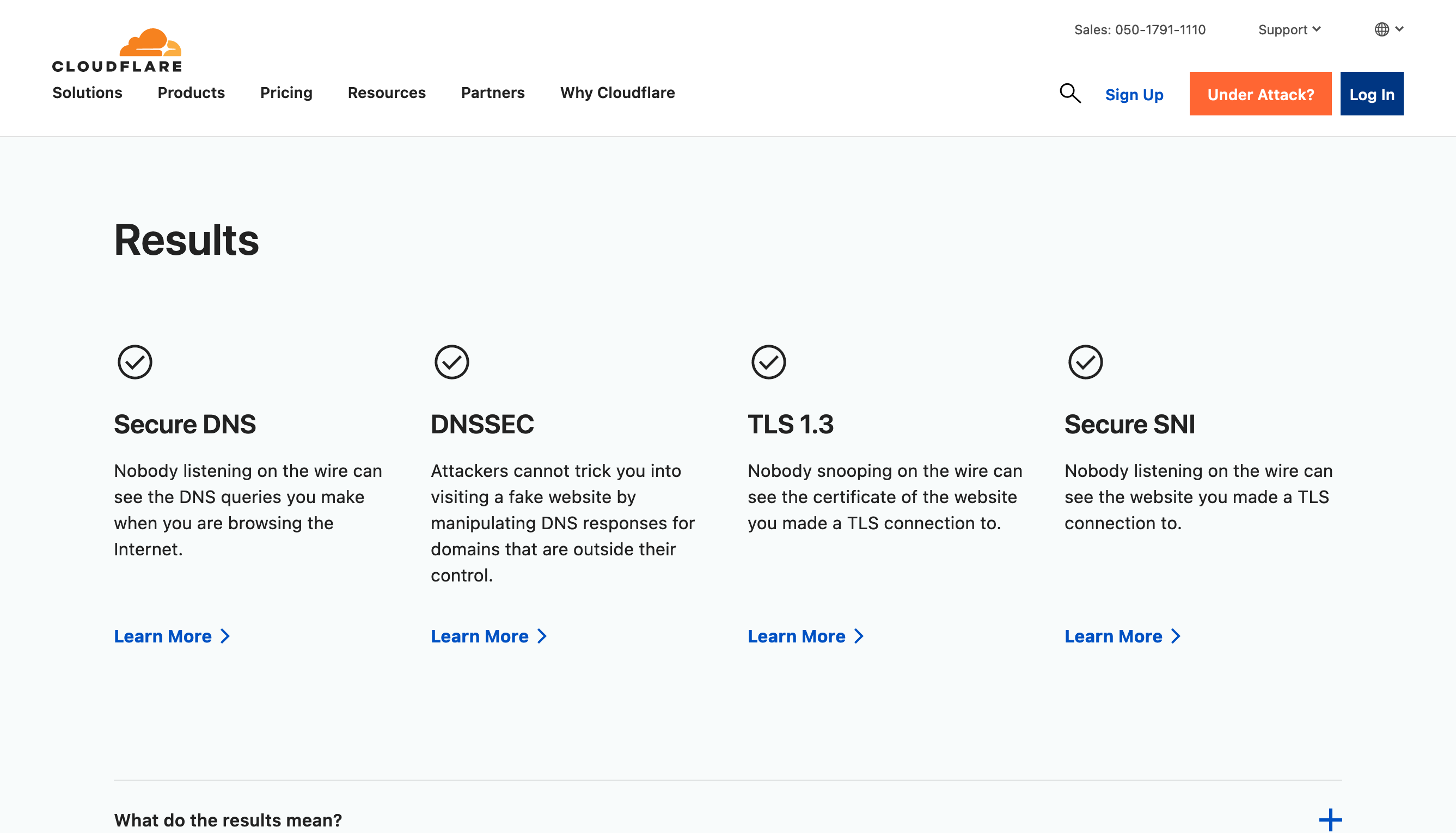
6. Compact View Settings
6-1. Compact Toolbar
In the latest version, to enableCompact view, first type about:config in the search bar and proceed, then change the following setting:
browser.compactmode.show true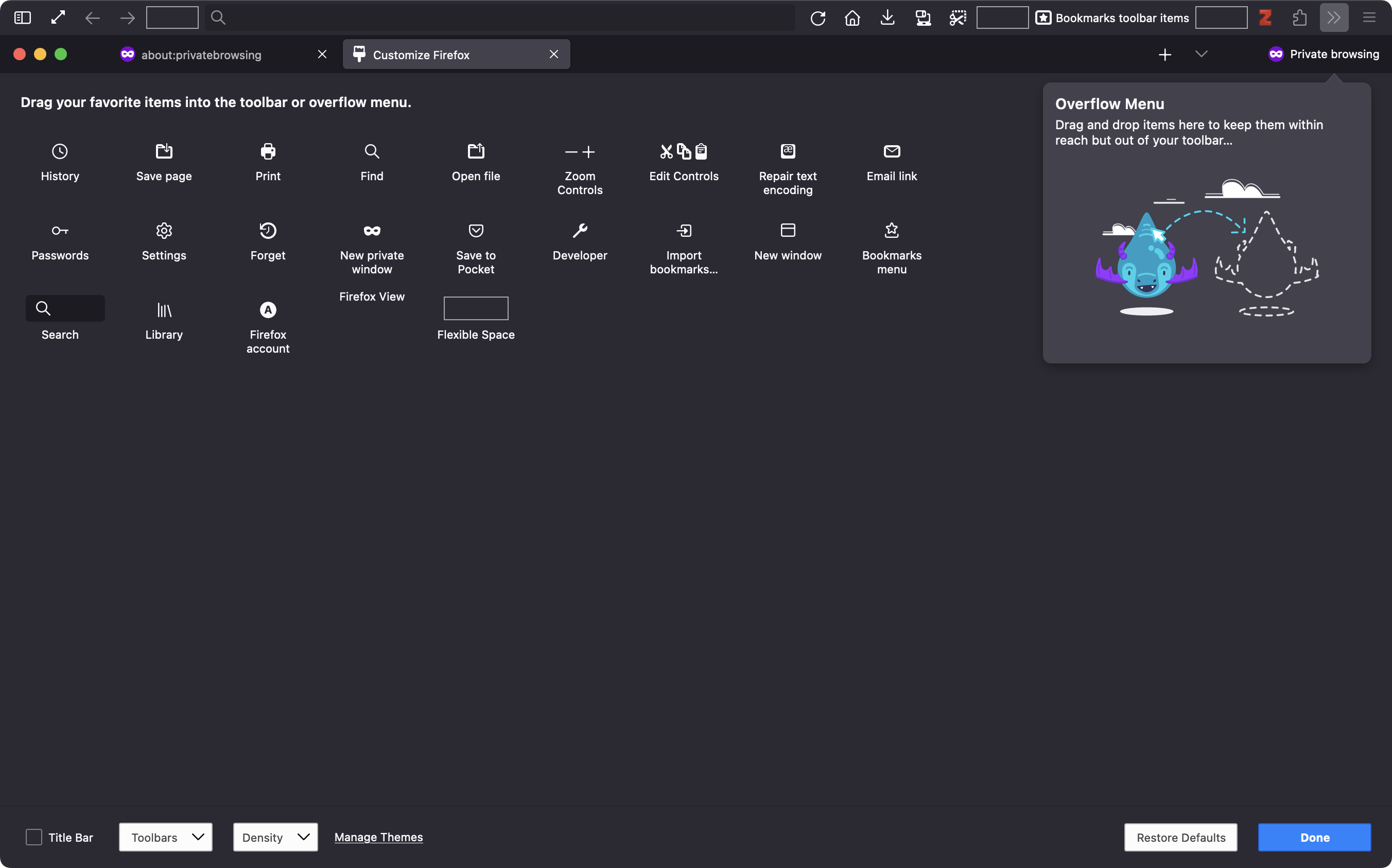
6-2. Customize userChrome.css
You can customize the window display to your liking using userChrome.css.
-
First, change the following setting to allow
userChrome.cssto be applied:- Type
about:configin the search bar and press Enter. - A warning page will appear, but proceed by clicking through.
- Search for
toolkit.legacyUserProfileCustomizations.stylesheets. - If it's set to
false, change it totrue.
- Type
-
Next, create
chrome/userChrome.css:-
First, run the following code in the terminal to create
chrome/userChrome.csson your desktop:mkdir ~/Desktop/chrome; cd ~/Desktop/chrome; touch userChrome.css -
Paste the code following
/* compact view settings */below intouserChrome.css. -
For Mac, place the file at the following path:
~/Library/Application\ Support/Firefox/Profiles/<****>.default-release/chrome/userChrome.css(<****> is an 8-digit alphanumeric string) You can access this by typing aboutin the search bar and clicking "Show in Finder" in the red box area shown below: 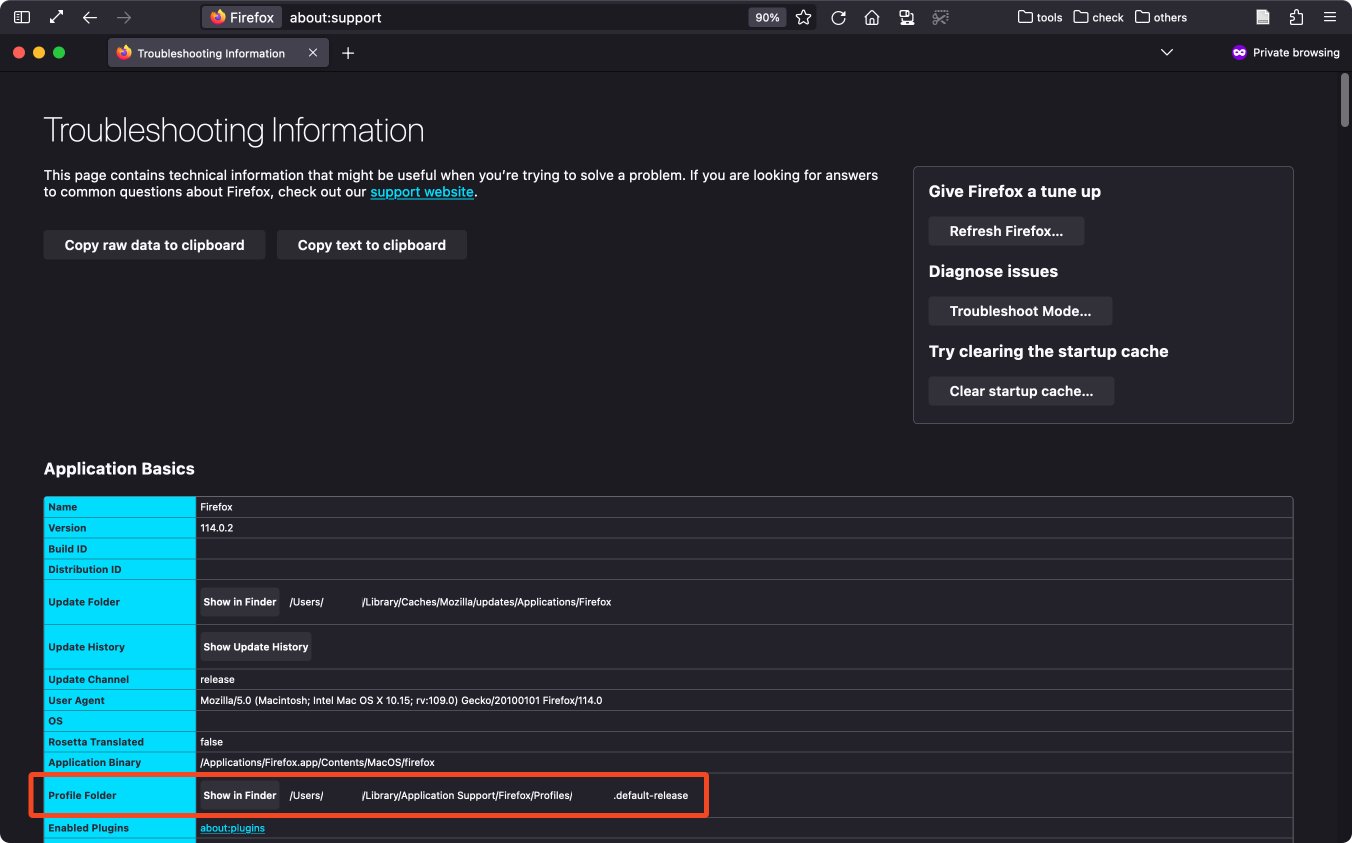
- Restart Firefox.
-
First, run the following code in the terminal to create
/* compact view settings */
/* compact bookmarks popup panel in toolbar */
#personal-bookmarks .bookmark-item,
#bookmarksMenuPopup .bookmark-item { max-width: 210px !important; }

/* compact "Show tabs from other devices" view in toolbar*/
#PanelUI-remotetabs,
#PanelUI-remotetabs-tabslist{
  height: flex !important;
  min-width: 100px !important;
  max-width: 210px !important;
}

/* compact library panel view in toolbar */
#appMenu-libraryView,
#PanelUI-history,
#PanelUI-bookmarks {
  min-width: 210px !important;
  max-width: 210px !important;
  max-height: 400px !important;
}

/* compact extensions panel view in toolbar */
#unified-extensions-panel panelview
{
  width: 210px !important;
  max-height: 500px !important;
}

/* compact 3-bar icon panel view in toolbar */
#appMenu-popup panelview,
#PanelUI-fxa {
  width: 210px !important;
}

/* compact alltabs button at top right corner */
#allTabsMenu-allTabsView {
  min-width: 100px !important;
  max-width: 210px !important;
}/* bring tabs below search bar */
#titlebar {
order: 1 !important;
}
/* remove maximum/minimum width restriction of sidebar */
#sidebar-box {
min-width: 0px !important;
max-width: none !important;
}7. Other Tips
- Firefox Keyboard Shortcuts
- Holding Cmd ⌘ while clicking a link will always open the link in a new tab.