2024-10-31

Moving Between Finder, Terminal, and VScode

Moving Between Finder, Terminal, and VScode

Table of Contents

1 From Terminal to Finder

To open Terminal's current directory in Finder, use open .. The open command is versatile --- you can use it to open other directories, files, or launch applications.

2 From Finder to Terminal

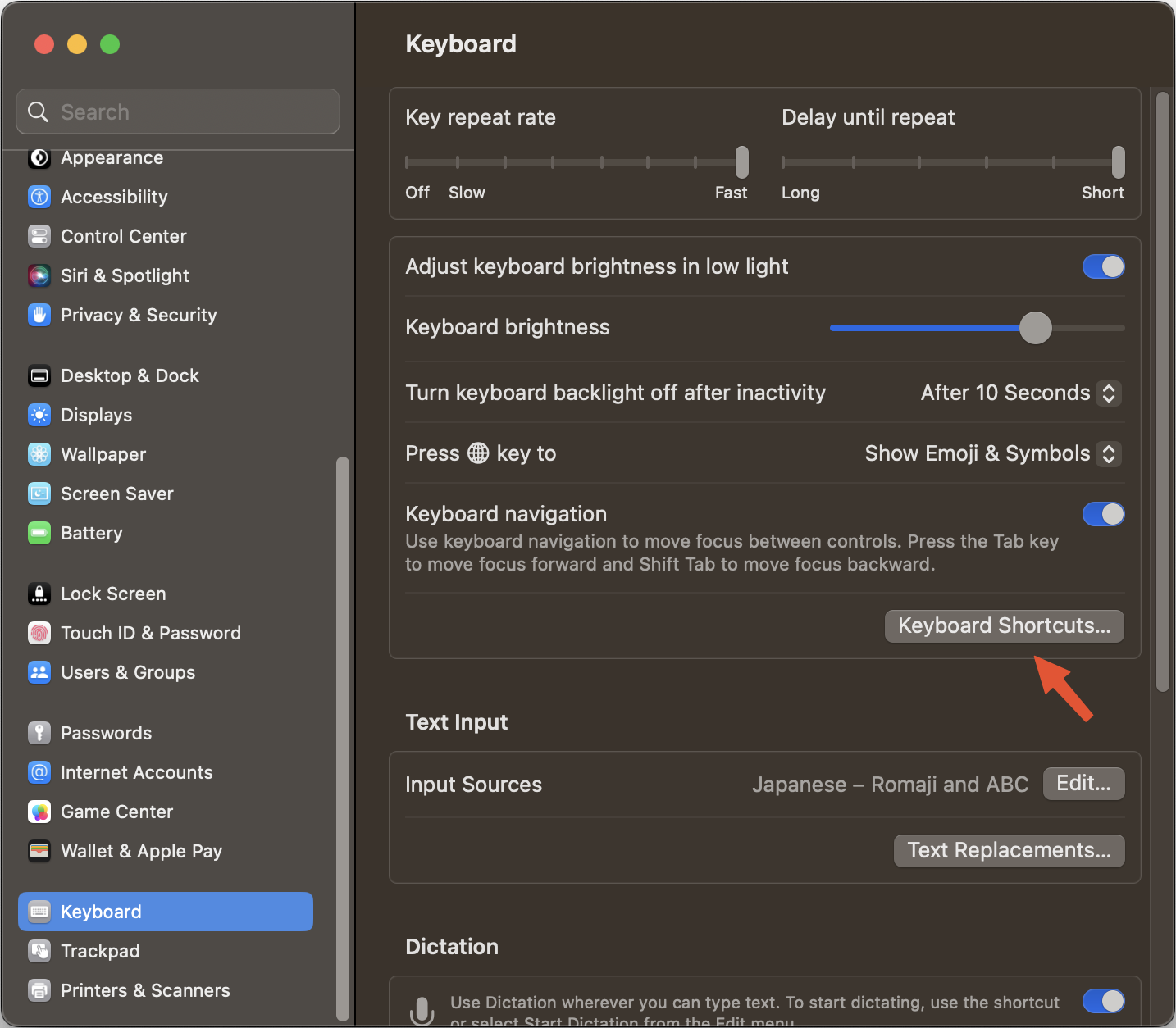
Here, we'll register a shortcut key to open Finder directories in Terminal. First, open [System settings > Keyboard > Keyboard Shortcuts > Services].
Untitled.png
Then, check the box in the red frame below and register a shortcut key (here, Cmd ⌘ + Shift ⇧ + E).
SCR-20230225-4ok.png
To actually open Terminal from Finder, either select a directory in Finder and use the shortcut key, or right-click and select one of the options in the red frame below.
SCR-20230225-4sf.png

3 Moving to Finder's Current Directory in Terminal

Here's a useful shell function. When using Terminal, you might want to navigate to the directory currently open in Finder. This can be achieved with the cdf command below. (Quoted from this page.) If you want to use it, add it to your .zshrc or .bashrc.
# Change working directory to the top-most Finder window location
cdf() {
    cd "$(osascript -e 'tell app "Finder" to POSIX path of (insertion location as alias)')";
}
For example, in the image below, Terminal was initially in Desktop, but after executing cdf, it moved to the Google folder that was open in Finder.
screenshot 1.png

4 From Finder to VScode

You often want to open Finder folders in VScode. It would be convenient to open selected folders with a shortcut key. Here, we'll create such a shortcut using Automator.app's Quick Action. First, open Automator.app and select Quick Action.
screenshot 1.png
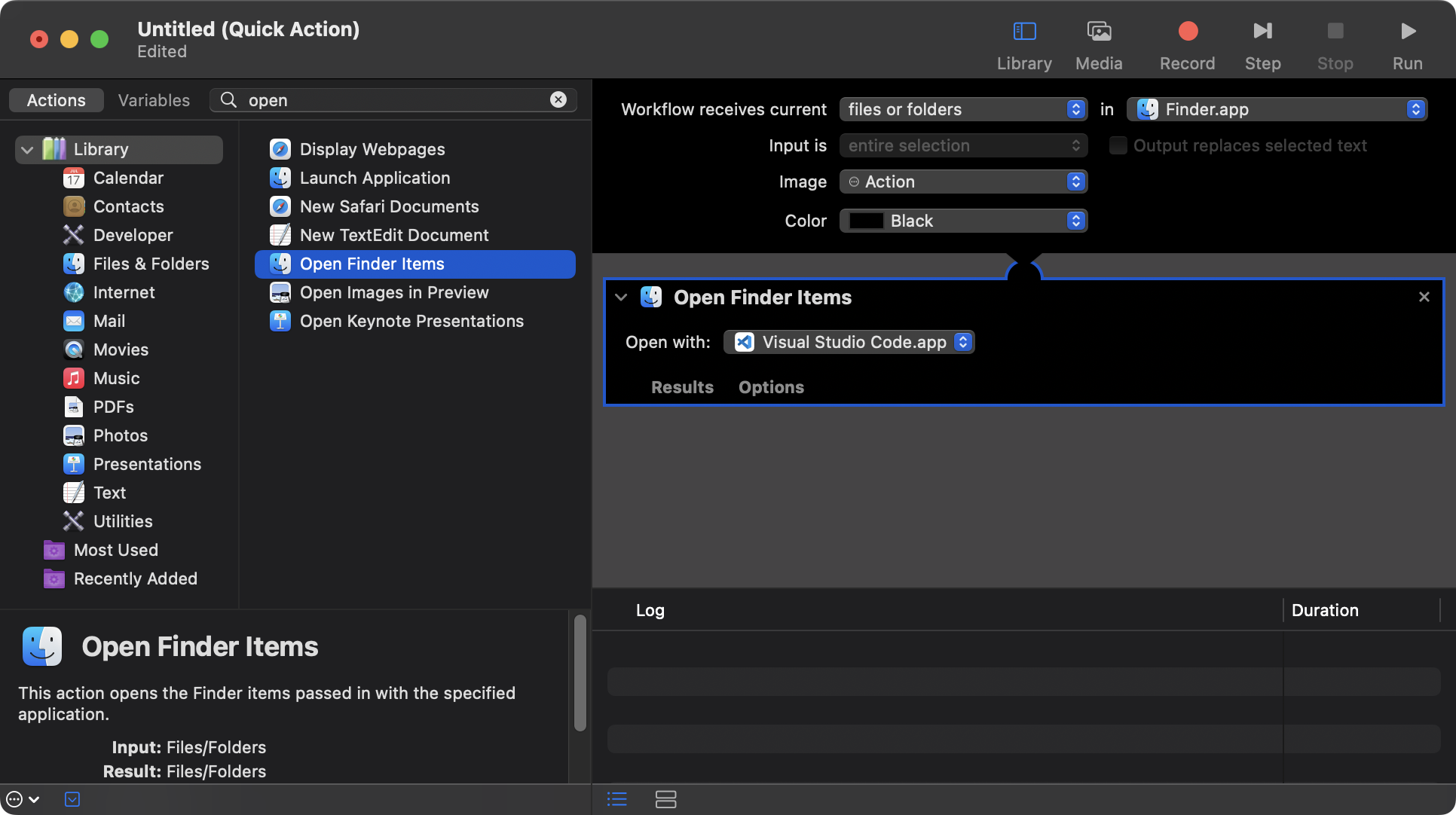
Next, change the red-framed parts to "files and folders" in "Finder".
screenshot 2.png
Then, type "open" in the left search box. When "Open Finder Items" appears in the suggestions, drag and drop it to the right. Select VScode within it.
screenshot 3.png
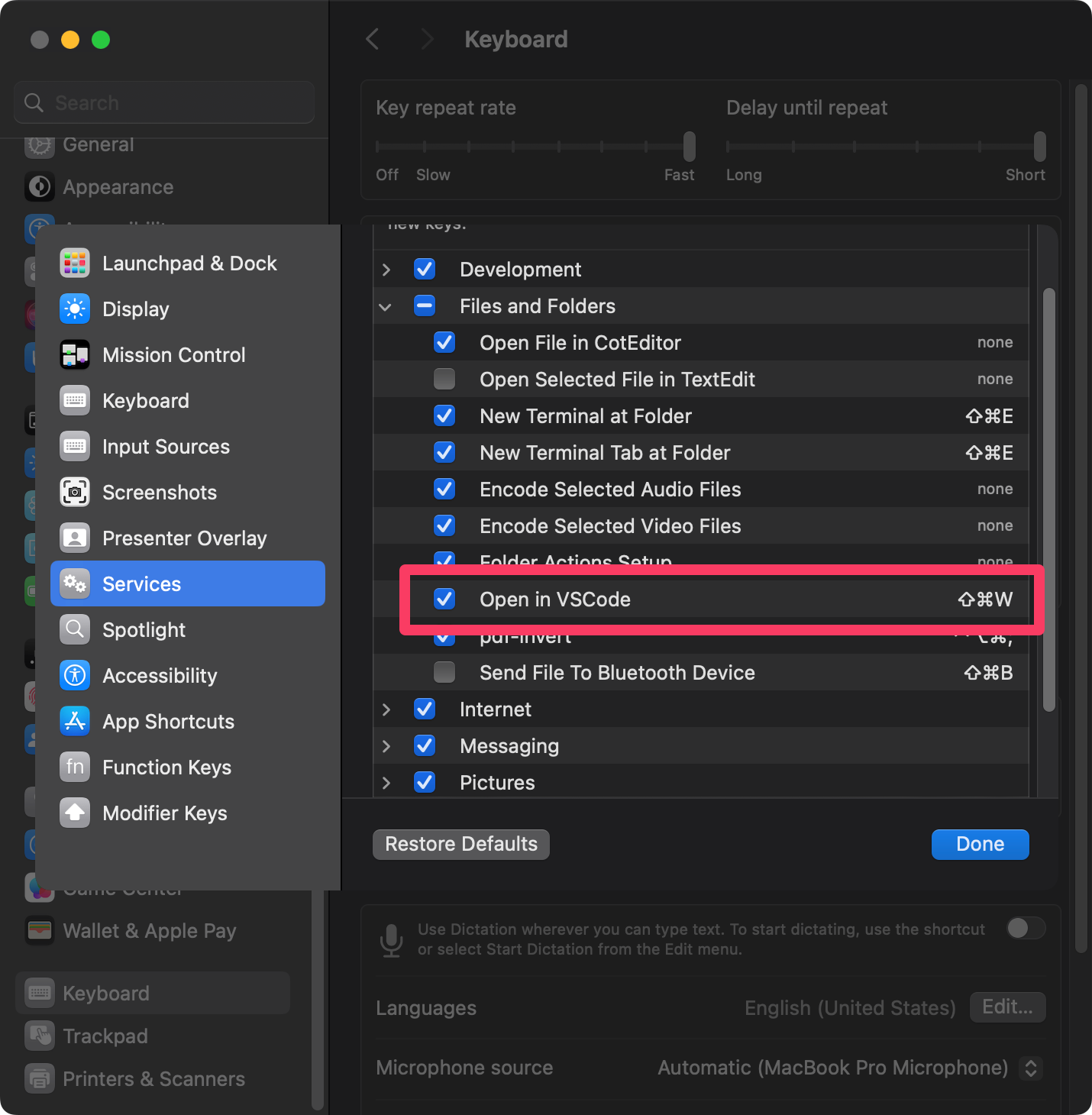
After completing these steps, save it with a name like "Open in VScode". Finally, assign a shortcut key to this Quick Action. Open System Settings and navigate to [System Settings > Keyboard > Keyboard Shortcuts > Services > Files and Folders]. You'll find "Open in VScode" that you just created. Assign a shortcut key (here, Cmd ⌘ + Shift ⇧ + W).
screenshot.png
Once done, try selecting a folder in Finder and pressing the shortcut key. VScode should open instantly.